
X. Adding People Data to a Private Gallery
Adding photos to a private gallery is a two-step process. Since private galleries give each person their own private sub-gallery, your job needs to keep track of information of each person within it. PhotoDay calls this information “subject data”, and it can be batch uploaded via a CSV file right into your job.
This CSV file must contain at least the subject's first and last name, but will also ideally include additional information ranging from email address to student ID, if they are students. This information is typically received from the organization with which the job is associated.
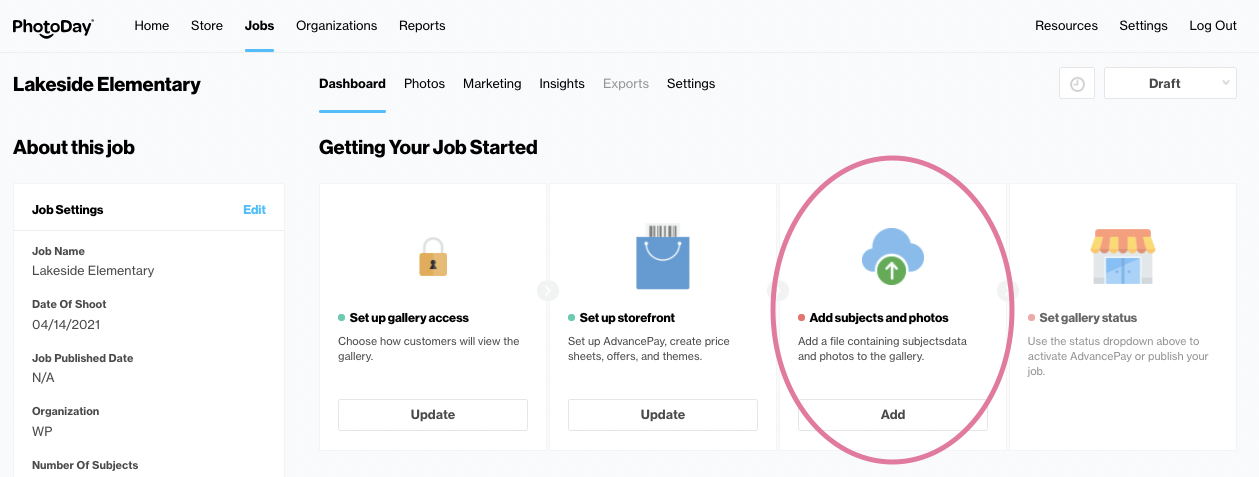
To add subject data, select the Add button under "Add subjects and photos".
Here, you will see your currently blank gallery.
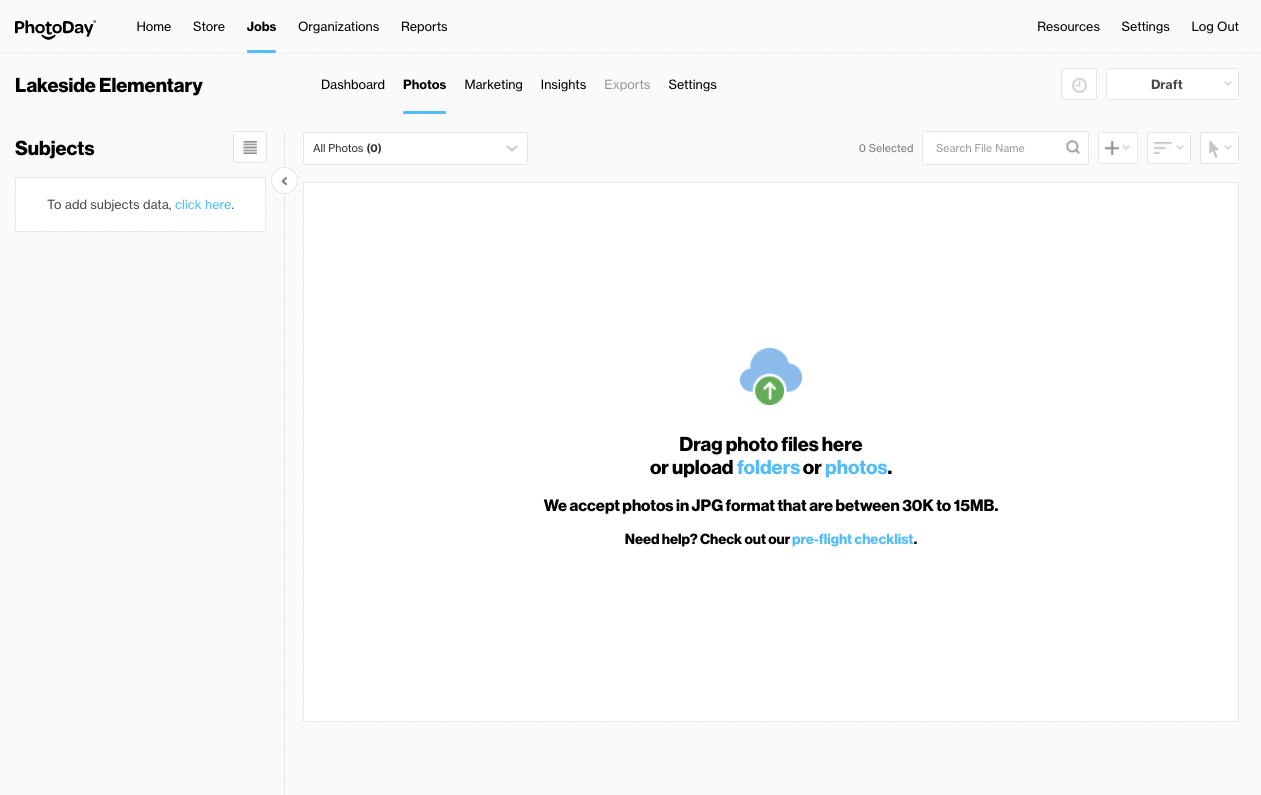
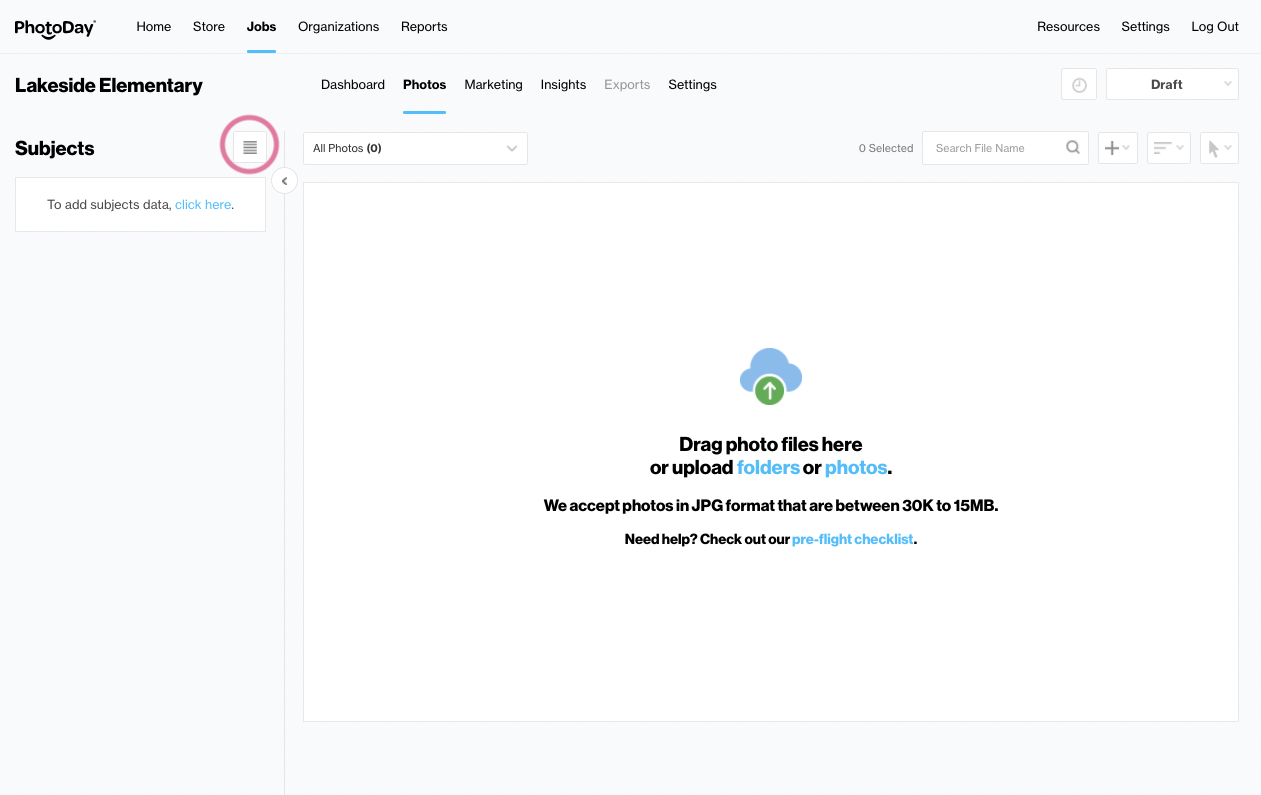
To add subject data, click on the view/edit icon adjacent to “Subjects”.
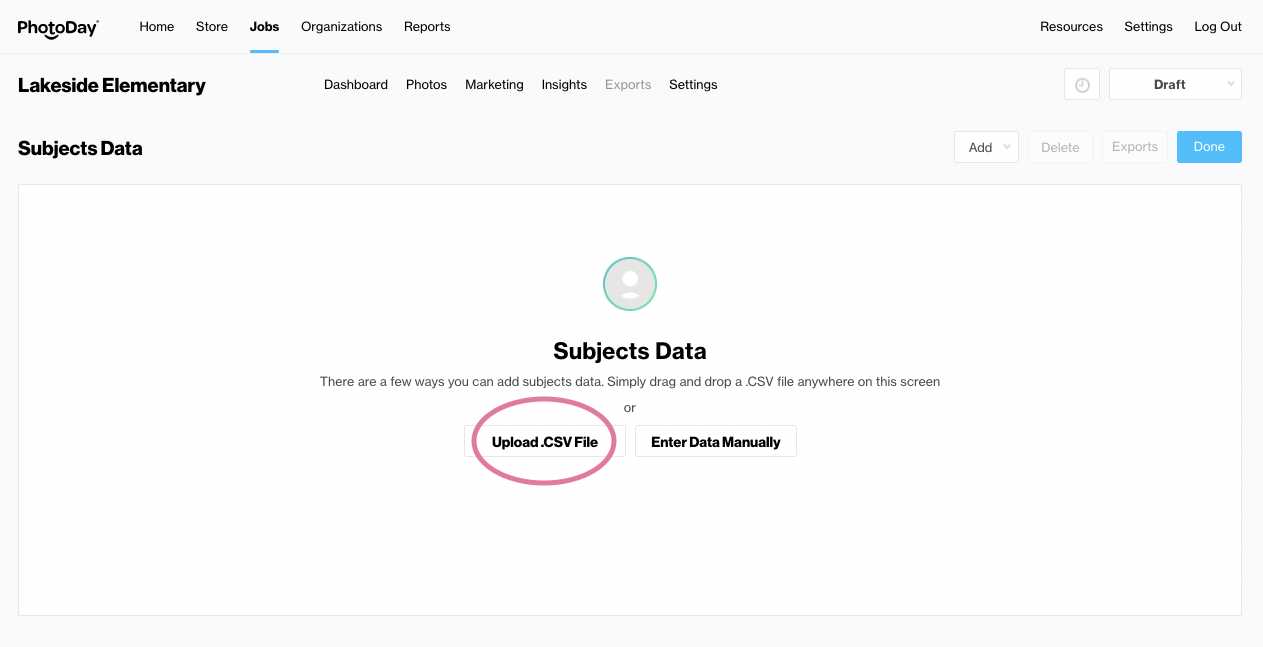
This will bring you to the currently empty Subject section, where you will be able to either add a CSV containing your subject data, or add an entry manually. In order to upload a CSV, click on the “Upload .csv file” button.
You can then select the CSV from your computer - or you can simply drag and drop it into the Data page.
You will then see your new subject data auto-mapped to matching columns.
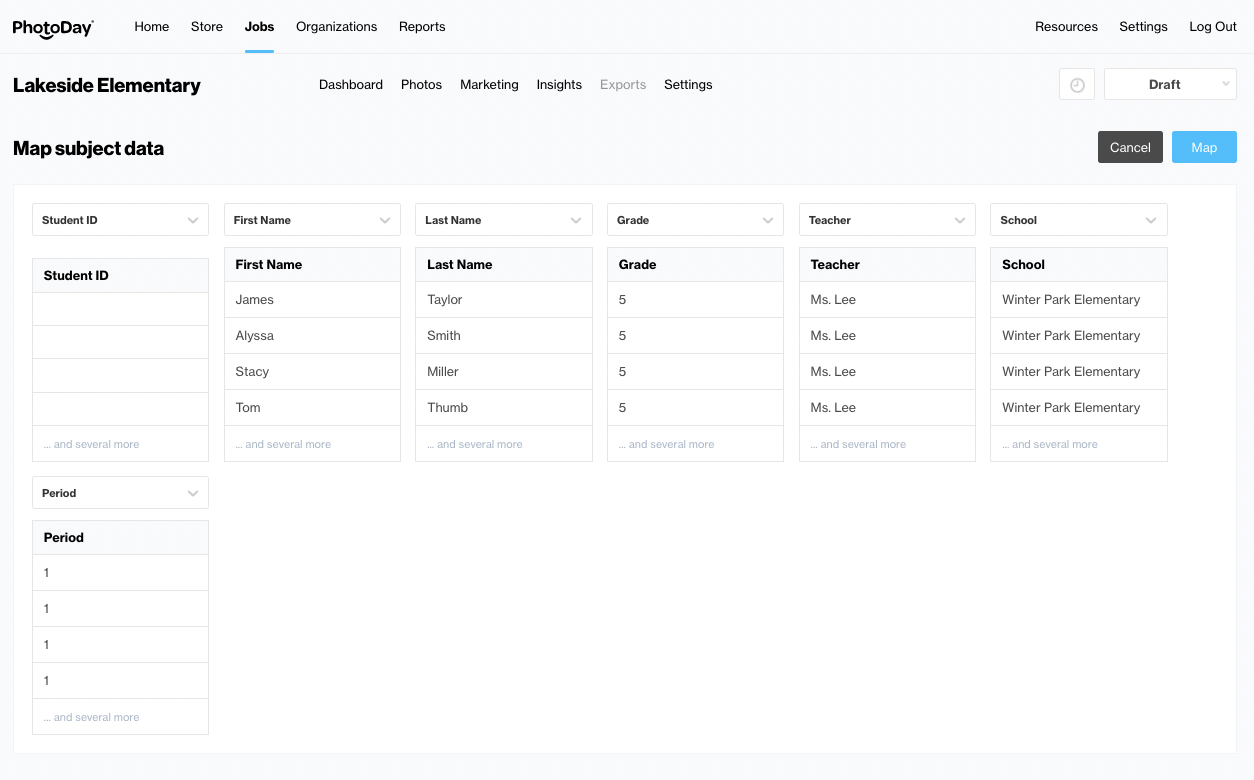
If a column was mapped incorrectly, it can be easily changed using the drop down header at the top of each column.
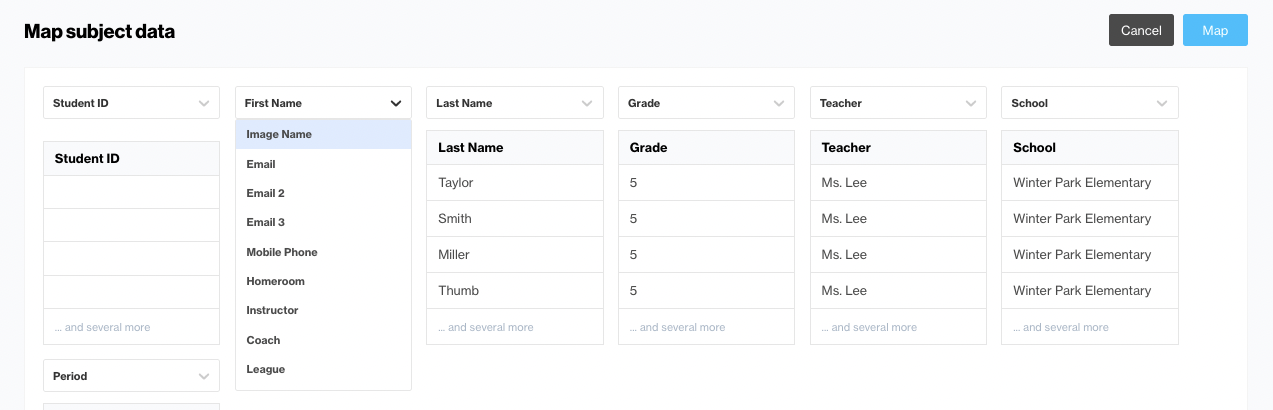
Once you are satisfied with how your data has been mapped, simply click on the blue “Map” button to complete your upload.
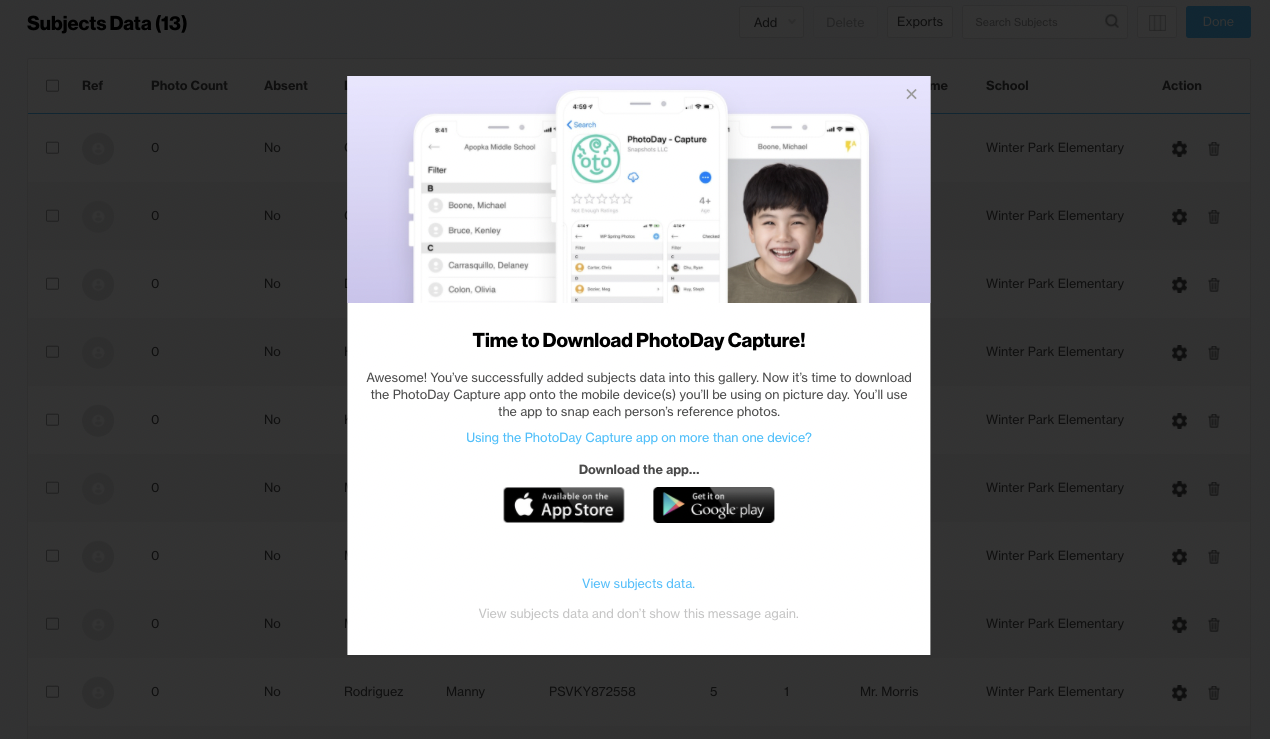
Congratulations! Your people data has been officially added to your job. Now, it is time to use the PhotoDay Capture mobile app to capture your reference photos, which will automatically sync with your subject data in the gallery.
In addition, you will also see that each individual subject in your data has been assigned a unique access code. This is the code your customers will use to find the exact photos for which they are looking for.
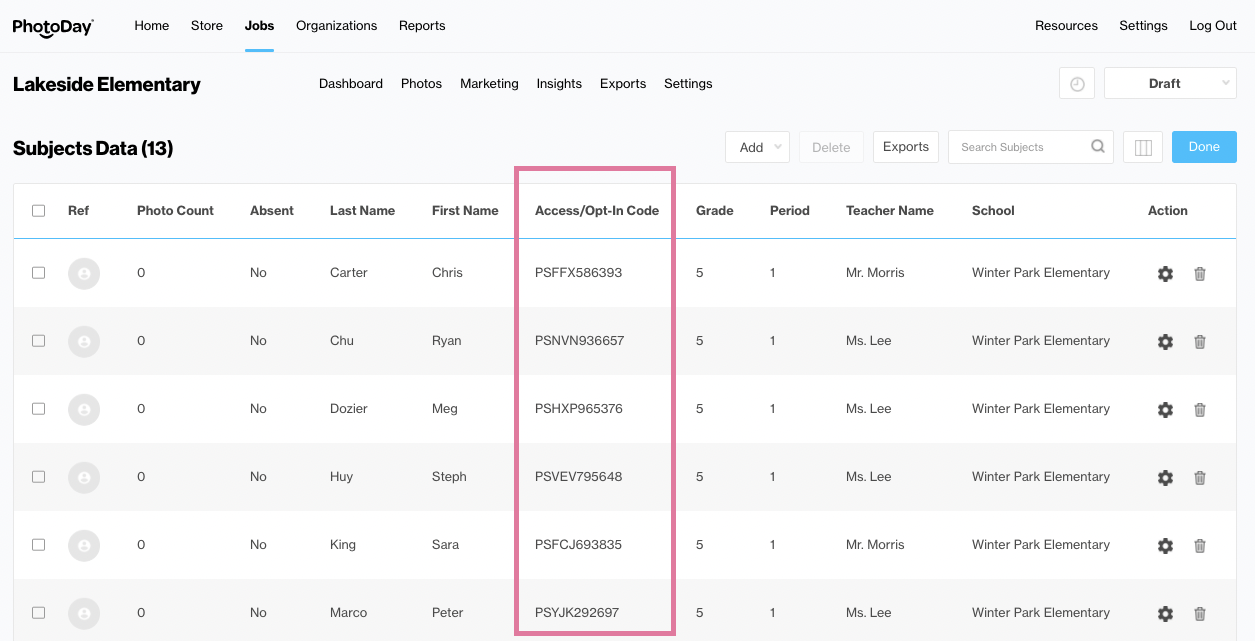
Once you are satisfied with how your subject data looks, click the done button in the top right corner to return to your gallery. You can always access this master list of subjects again by clicking on the circular plus sign icon in the Subjects column on the left side of your gallery.