
IX. Jobs
Once your studio information is completed, have created a price sheet, and have at least one organization added to your studio panel, you can begin creating and promoting your jobs. A “job” within PhotoDay is any picture day shoot, its associated information, and the photos it will eventually include, along with any promotional flyers created for that specific job.
There are three different ways a picture day job can be set up - all depending on the type of gallery you’d like to create. PhotoDay includes three gallery types - each specialized for specific types of jobs.
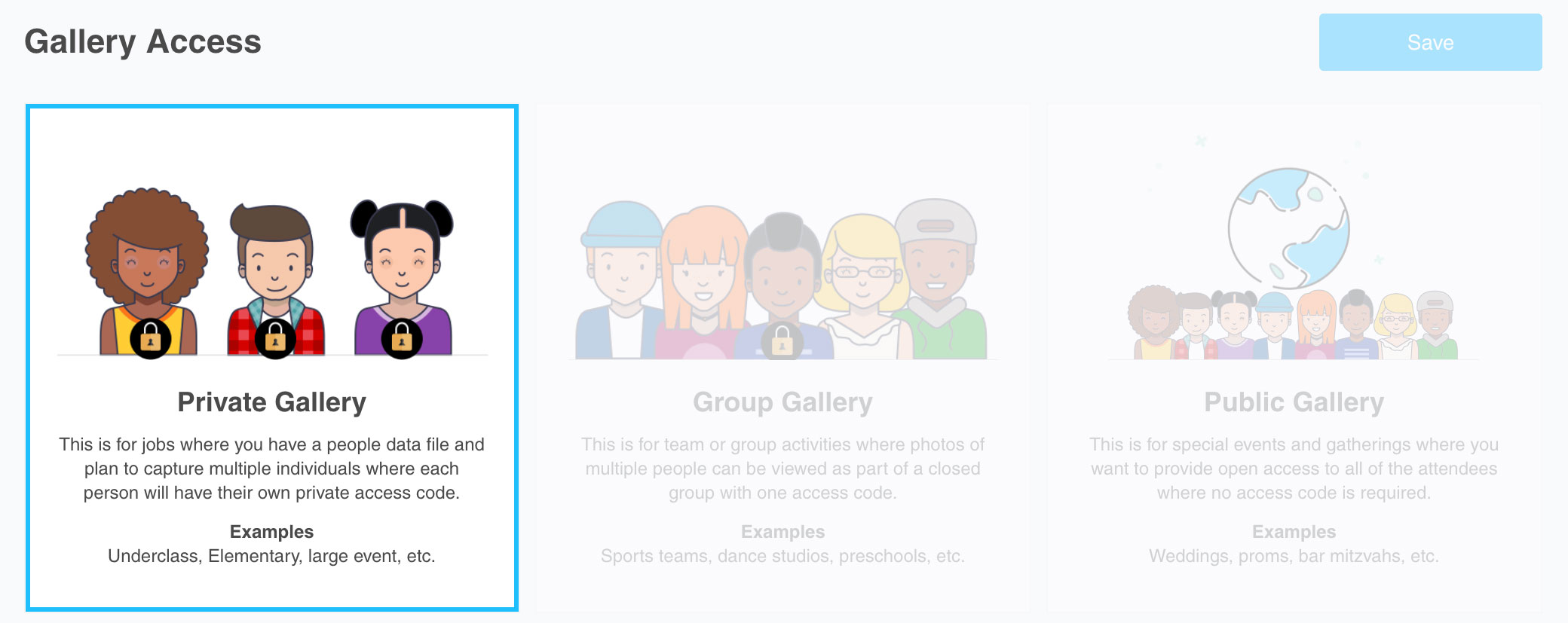
Private galleries are most useful when it comes to picture days that require extra levels of privacy, such as photos for a public school. These galleries provide private sub-galleries for each individual photographed, meaning each person will have their own private access code. Private galleries are used in conjunction with the PhotoDay Capture mobile app, which automatically matches people data with professional photos using PhotoDay’s face recognition technology. For a detailed rundown of the workflow involving the PhotoDay Capture app, please jump to this section here!
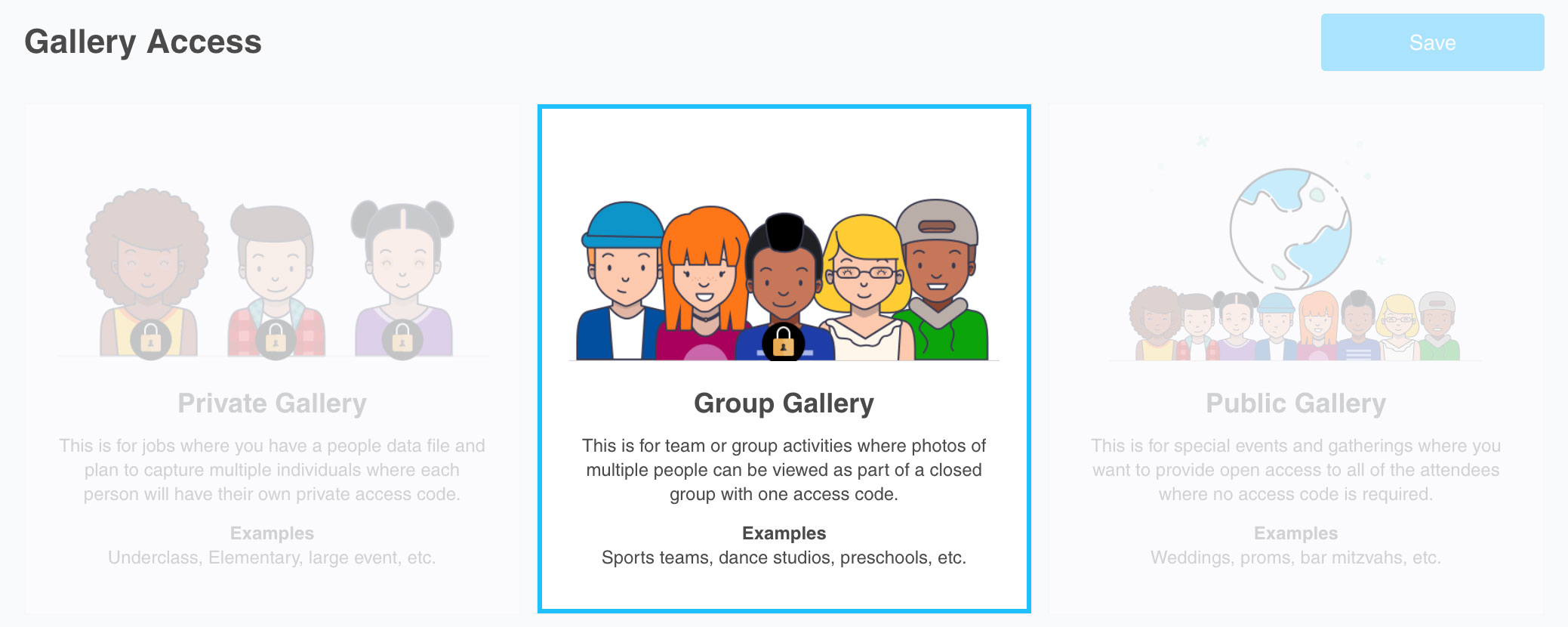
Next up are Group galleries, which are most useful for any job where photos of multiple people can be viewed together in a closed group. This gallery type is best used for any group activity, event, or team where an access code is required but where all participants can see every photo with the gallery.
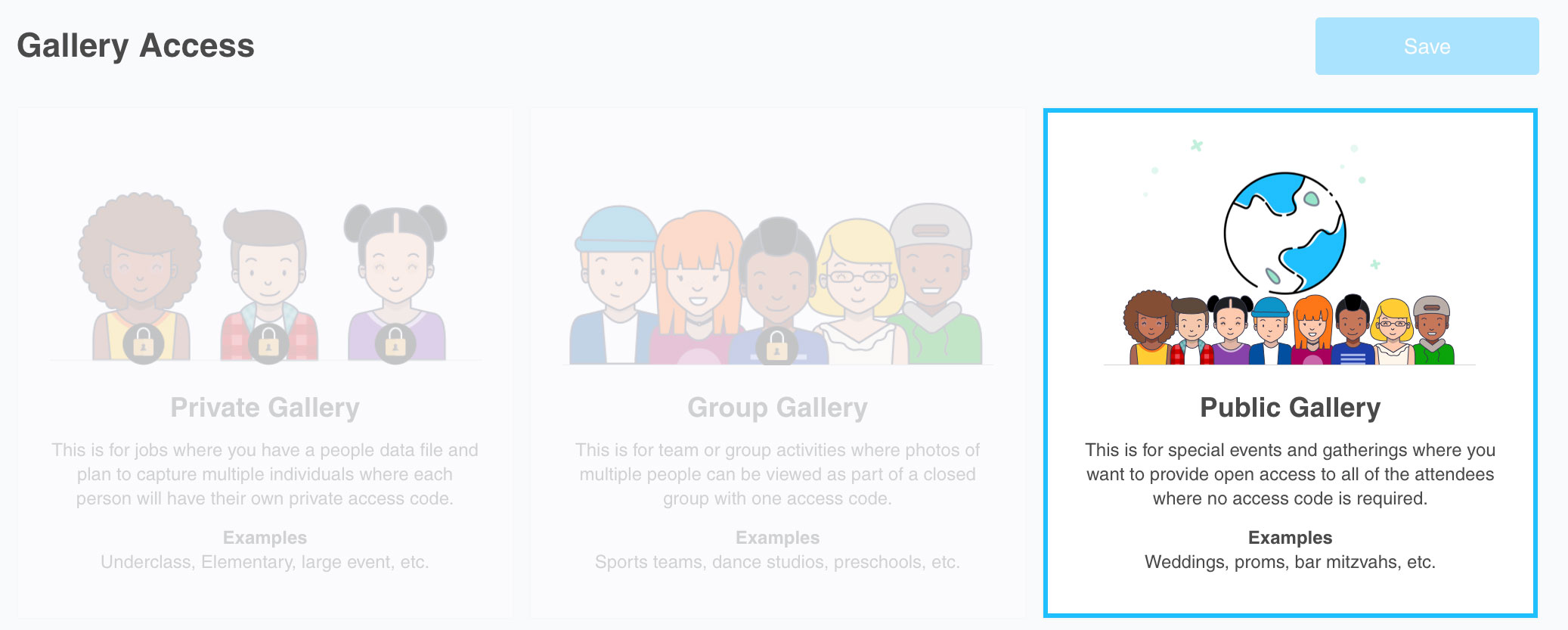
Finally, there are Public galleries, which are best utilised for any jobs where you don’t want to require an access code to enter the gallery. This gallery type is most appropriate for group activities and special events, such as weddings, parties, and corporate gatherings. Customers will simply need the direct URL to the private gallery to view every photo contained within it.
Determining what kind of gallery is best for your picture day is up to you, but once you have decided on one, go ahead and click on the Jobs section of your studio panel to begin the job creation process.
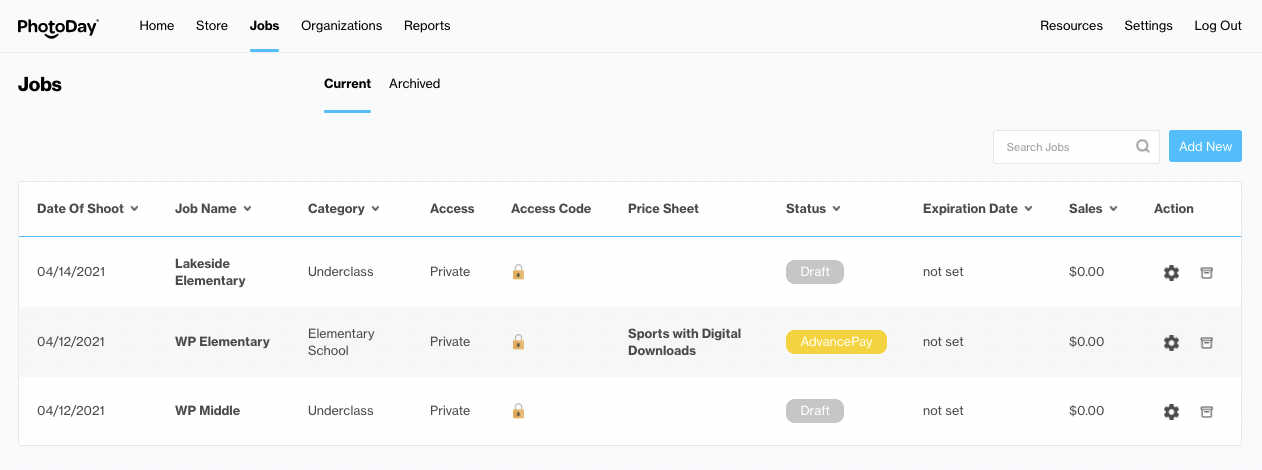
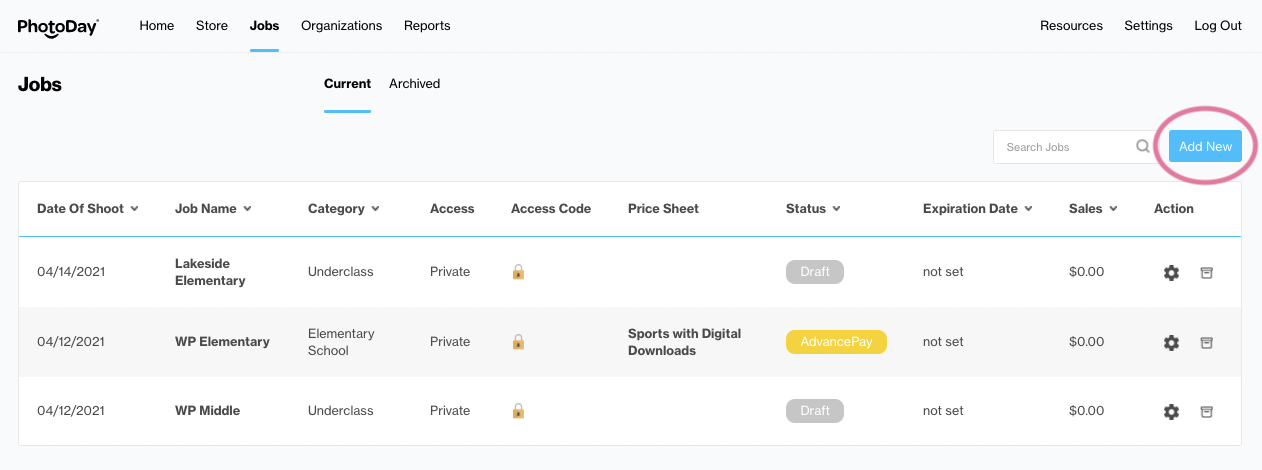
If this is your first time creating a job, this page might be empty, aside from three example jobs each representing a different gallery type. This is where every job you create will be listed, along with its associated information such as its access code (if applicable), gallery type, and date published. To create a new job, click on the Add New button on the top right of the page.
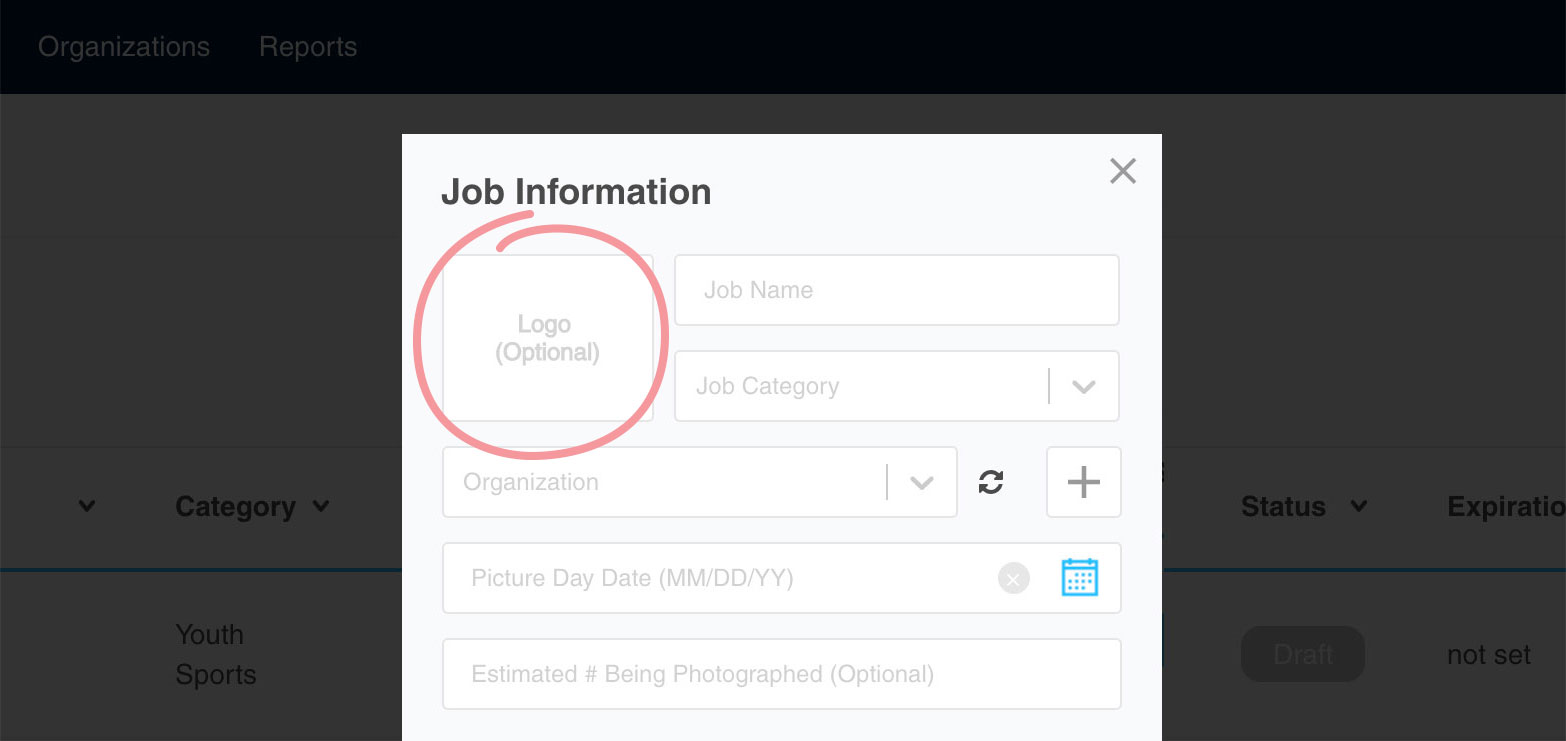
This will bring up the Job Information window, which will prompt you to give your job a name, as well as associate it with an Organization You will also be able to upload a custom graphic to represent your job in this window. The logo should be relatively square in dimension, and must be a PNG image file 15MB or under.
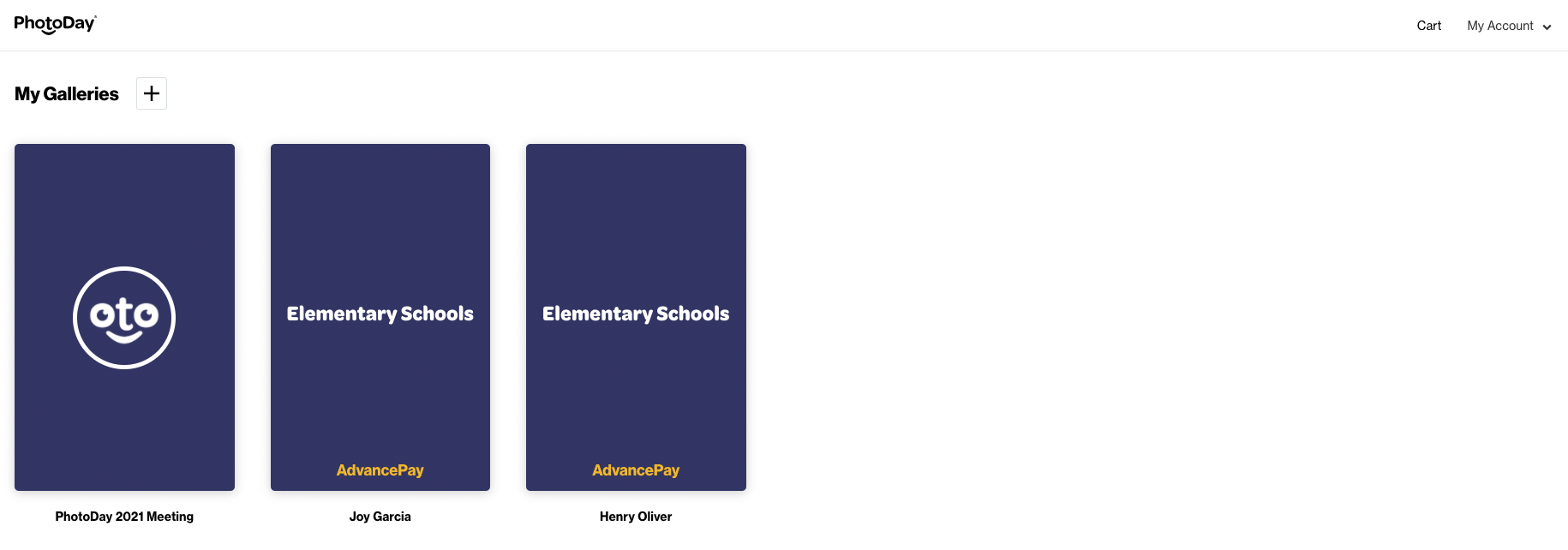
When viewed by a customer, that job logo will be displayed as a circular thumbnail within their gallery list.
You will also need to specify the job category, which will determine the kind of customizable themes for specialty products that will be available to your customers once they check out. In addition, you will also be required to enter the day of the picture day - this will be used for both organizational purposes, as well as for promoting your gallery. Optionally, you will also be able to enter the estimated amount of individuals that will be photographed. Lastly, you will need to enter the time zone in which this job took place - by default, PhotoDay will list this as Eastern unless changed.
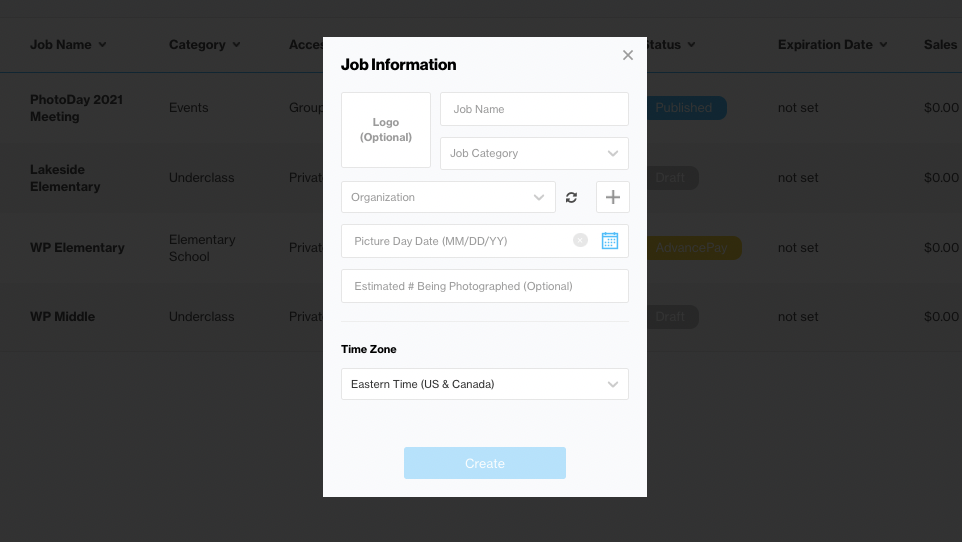
Once filled out, you will be able to click on the Create button, which will bring you to the Getting Your Job Started page, which acts as a guide to setting up your new job.
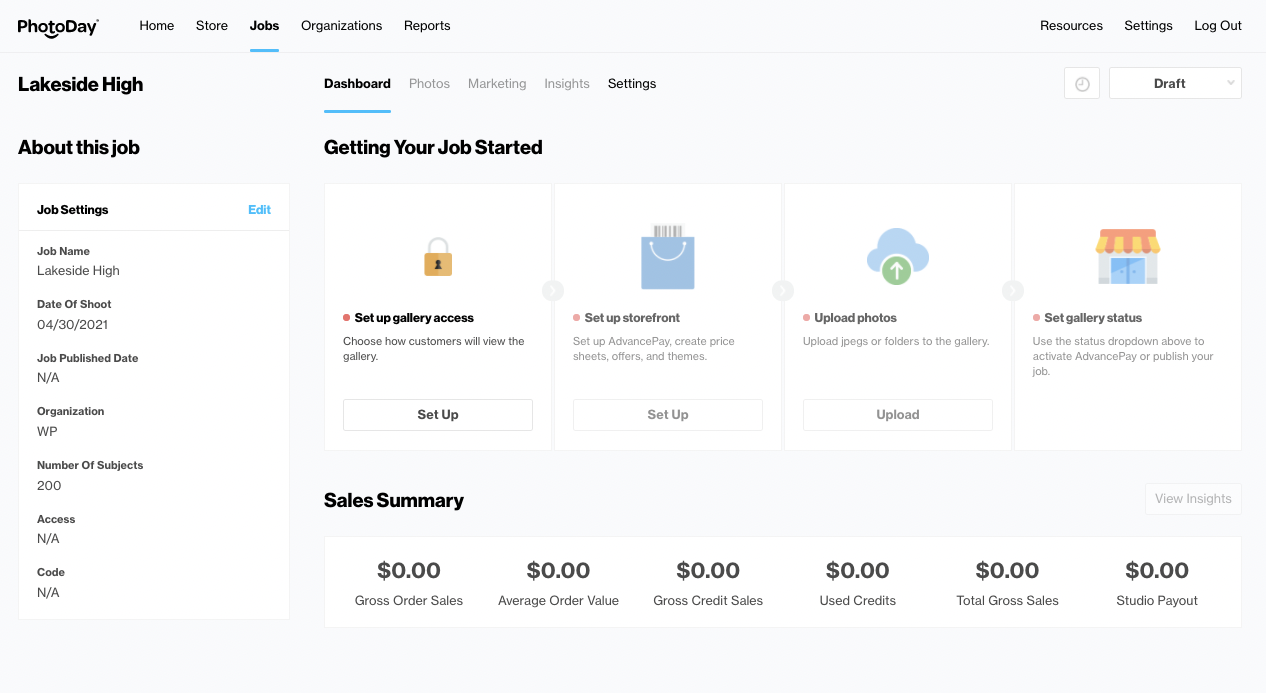
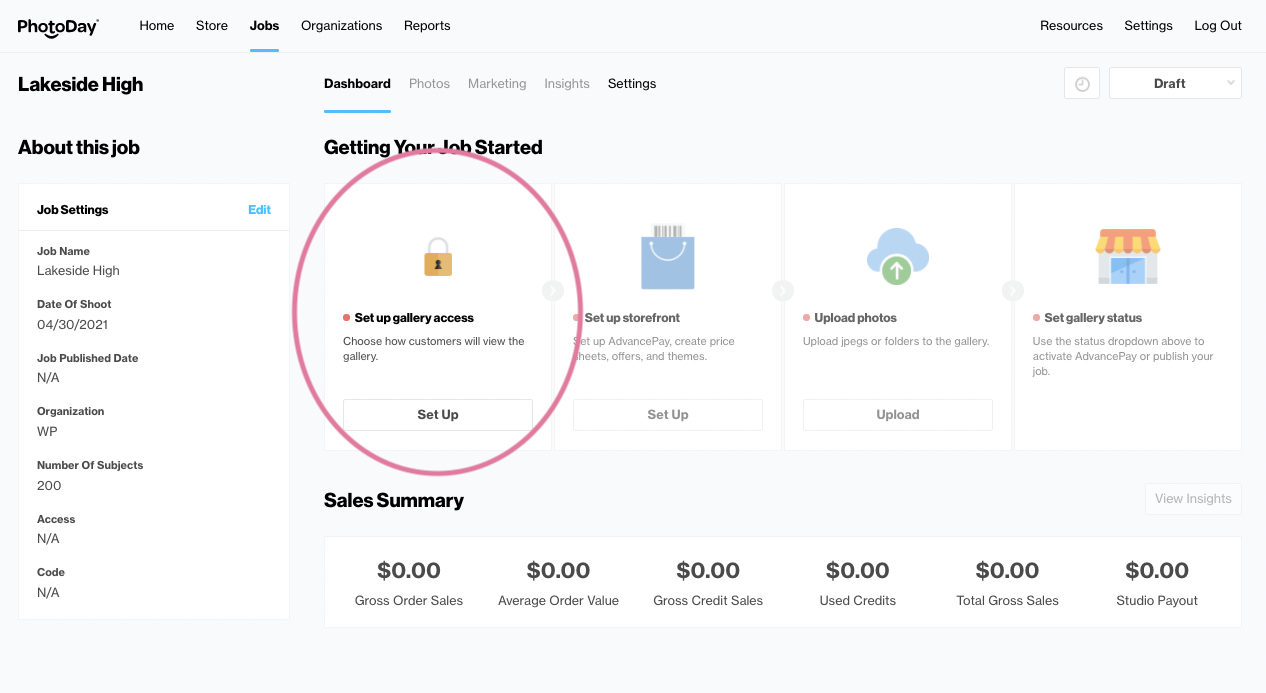
This section will walk you through the creation process, from selecting the gallery type, all the way through publishing. To get started, click on the Set Up button under Set Up Gallery Access.
Here, you will be presented with three options to select the type of gallery you wish you create. When you select a gallery type, some customization options will appear below.
When you select Private Gallery, you will see three items listed below.

The Gallery Link presents the direct URL to your gallery, which can be customized to your liking. By default, the URL will be based on the name of the job.
Your Access and Opt-In codes will contain no customization options, as private galleries use auto-generated codes for each individual photographed in the gallery.
An expiration date for the gallery can be set here as well - if you wish to create a sense of urgency in marketing your gallery, or simply wish for it to be published for a limited amount of time, you can set a date for the gallery to auto-expire. After this date, no customer will be able to access your photos, unless you decide to republish your gallery.
If you select Group Gallery, your options are very similar.

The Gallery Link will still be able to be modified.
Your Access and Opt-In code can also be set to your liking. By default, PhotoDay auto-generates an alphanumeric code for your gallery, however this can be changed to anything, as long as it remains at ten characters or under. This is the code that will be used by customers to opt-into your gallery.
Your expiration date for the gallery can also be set here, just as with Private galleries.
Finally, if you select Public Gallery…

The Gallery Link will still be able to be modified.
Your Opt-In code can be set to your liking. Since public galleries do not require an access code to view photos, instead there is an optional opt-in code that customers can text to the PhotoDay short code to receive a direct link to the gallery. By default, PhotoDay auto-generates an alphanumeric code, however this can be changed to anything, as long as it remains at ten characters or under.
Your expiration date for the gallery can also be set here, just as with Private and Group galleries.
Once you’ve selected a gallery type and have customized it, click on the Save button at the bottom of the screen. Gallery types cannot be modified after you have saved. After you have saved your gallery access settings, you will now be able to select the next step in the set-up process - creating your gallery storefront. Begin by selecting the Set Up button under the Set Up Storefront icon.
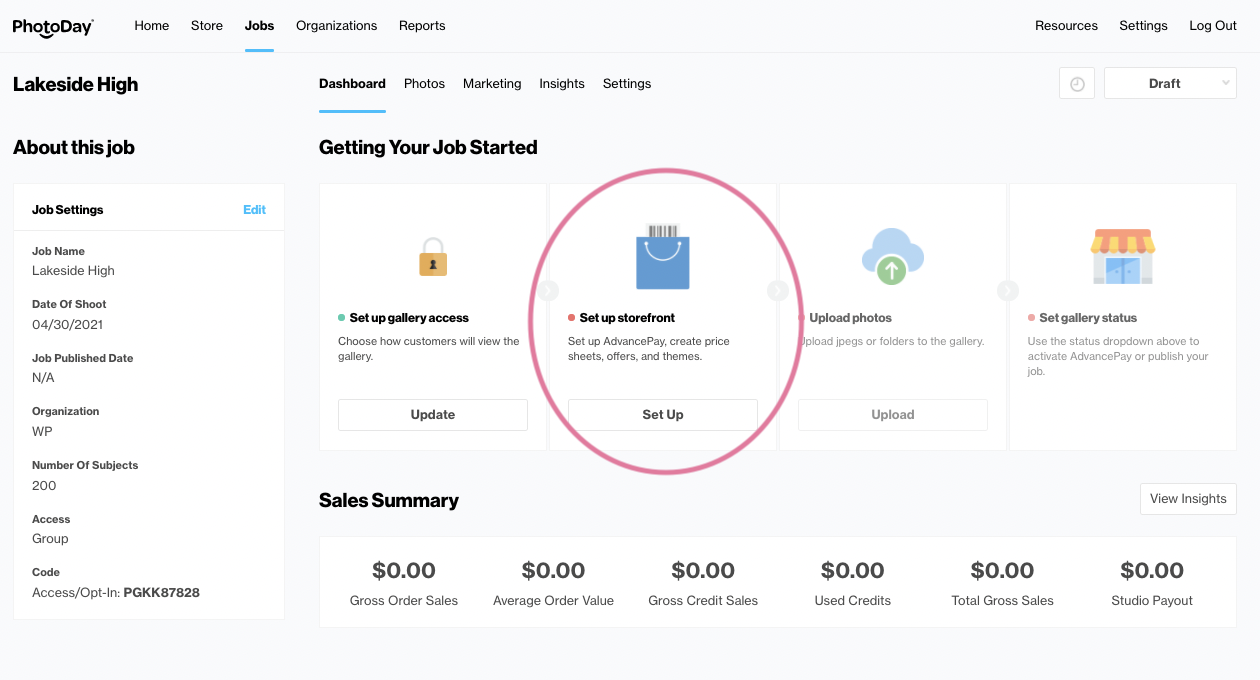
Here, you will be able to attach your price sheets, offers, and AdvancePay options to your new job, as well as select theming options for your products.
The first section displayed will be the Price Sheets section. Here, you will be asked to select the price sheet you wish to attach to your new job. Select one from the drop-down menu, or create a new one from the adjacent link.
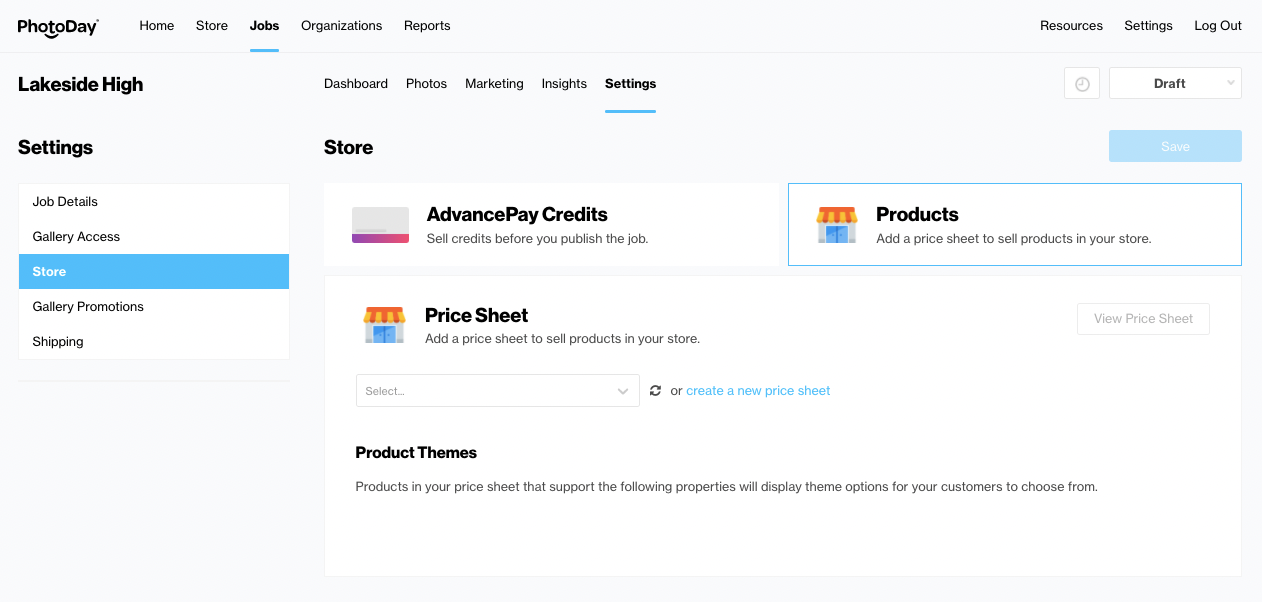
Once your price sheet is attached, that lab’s theming options will populate below. Choose which themes apply to this job - you can choose more than one! This will determine specialty product theming options for your customers during checkout.
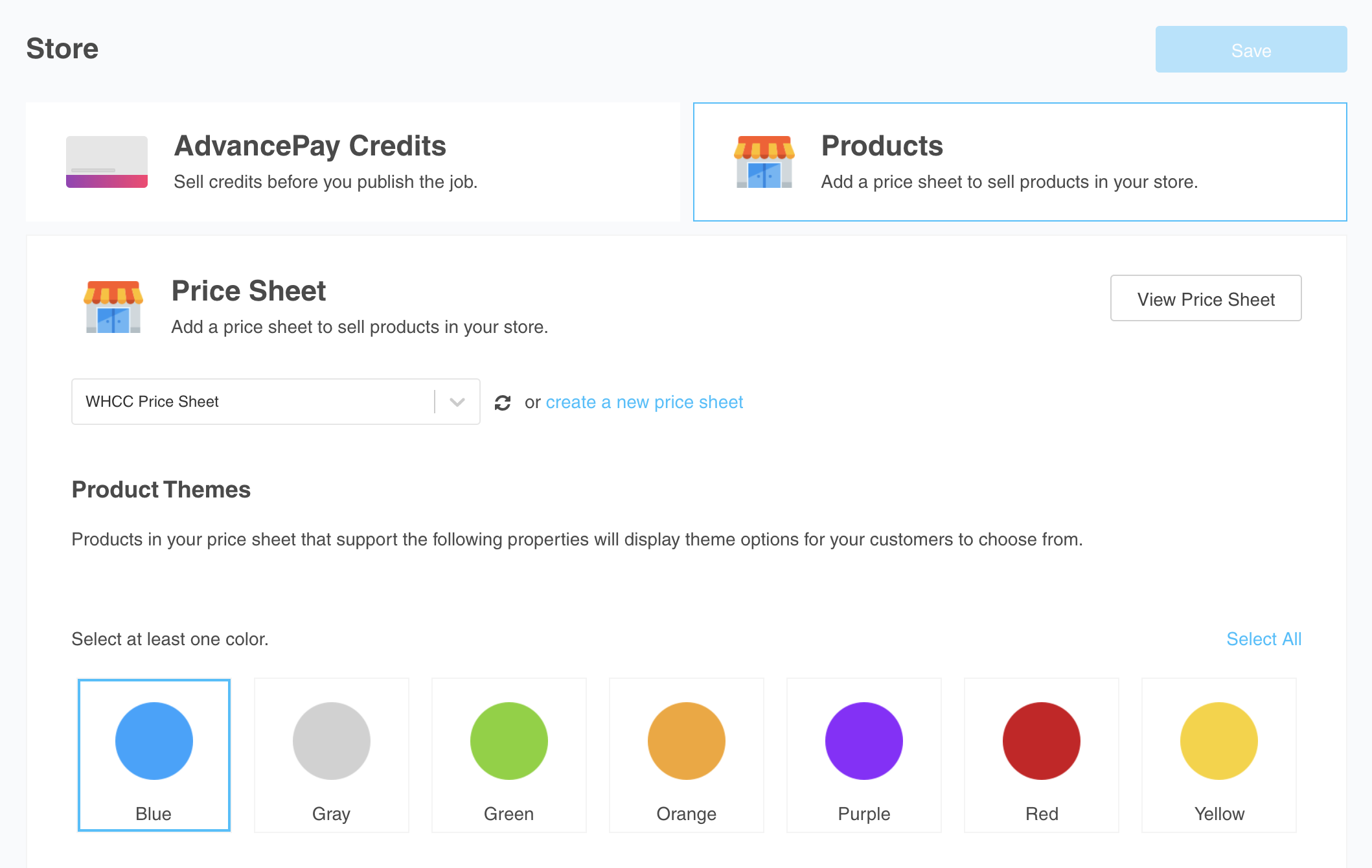
PhotoDay also allows for you to include your own custom themes. Please note that custom themes can only be used with certain products - for a complete up-to-date list of products that support custom themes, visit this article here.
To upload your own themes, first visit the Store after logging in at studio.photoday.io..

From there, select the Custom Themes icon. This will bring you to a list of your current uploaded themes - referred to here as a Collection.

To add a Custom Theme, click on the Plus icon to add a new Collection.

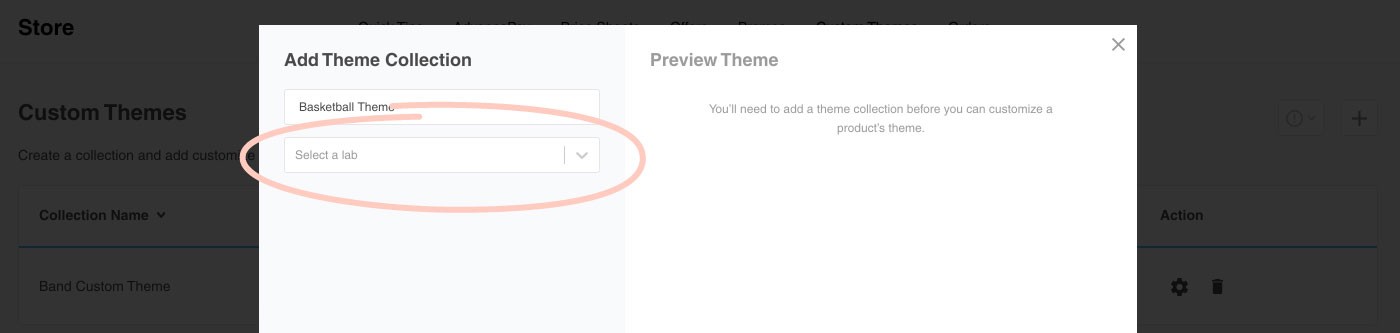
This will bring up the Add Theme Collection window, where you can first name your new Collection.

Then, you will be able to select which lab with which you wish to associate this Collection. Please note, as of right now, only certain labs offer the use of custom themes. If you do not see your lab available, this means Custom Themes are not yet available with that lab partner.
Once you have a lab chosen, click the Next button, and you will be able to select that lab's products for which Custom Themes are available.
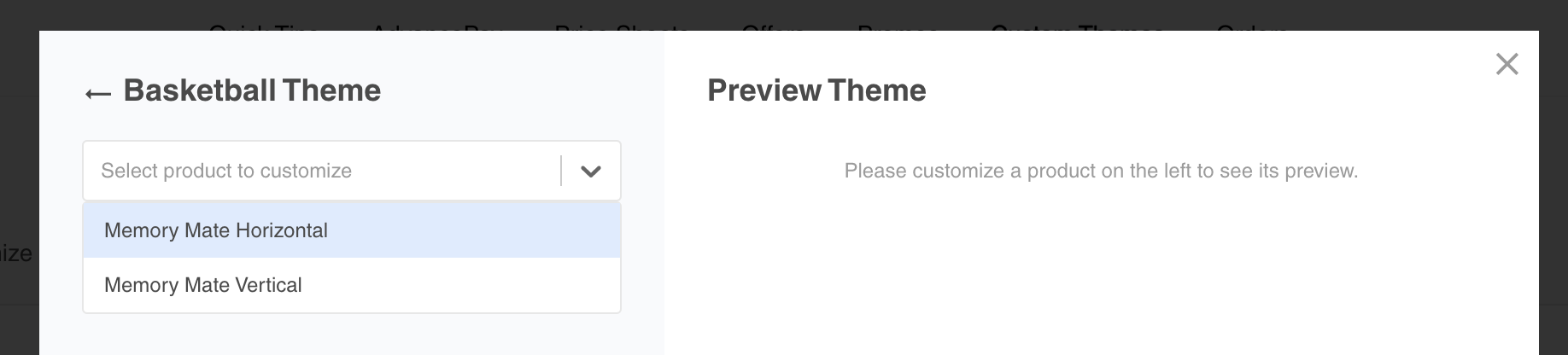
Once you've selected a product, you will be able to upload your custom theme file. If you require a template for themed products, please visit this link here for resources.
With your now uploaded Custom Theme, you will have further customization options, such as choosing how text will appear over your theme.
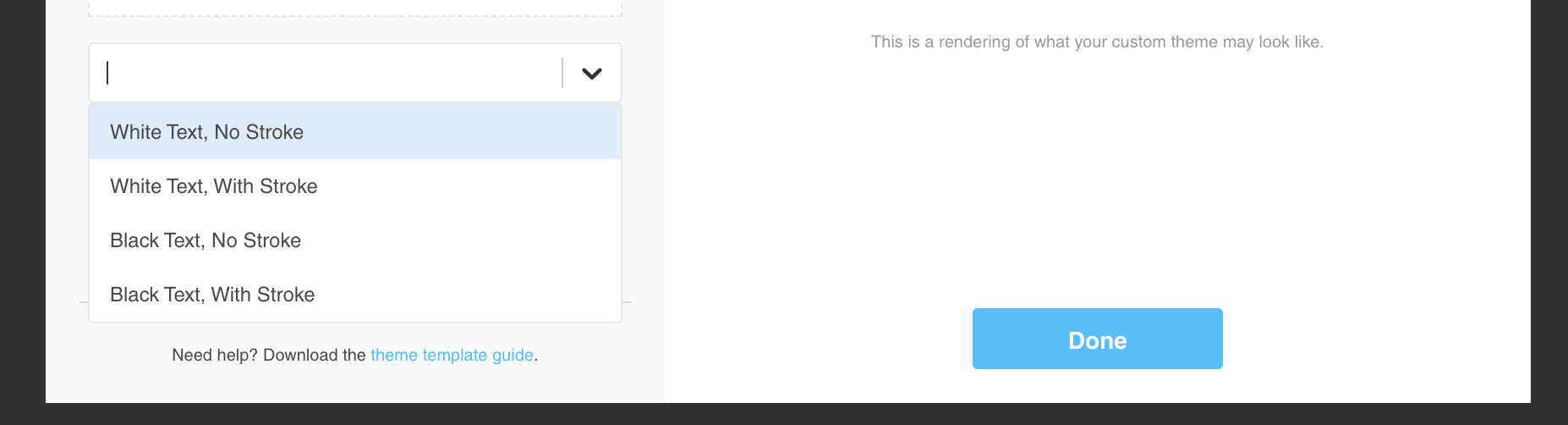
You will also be able to toggle whether or not your studio logo will appear on your Custom Theme. If your logo is already part of the file, we recommend this remain "off" to prevent the doubling up of your logo.
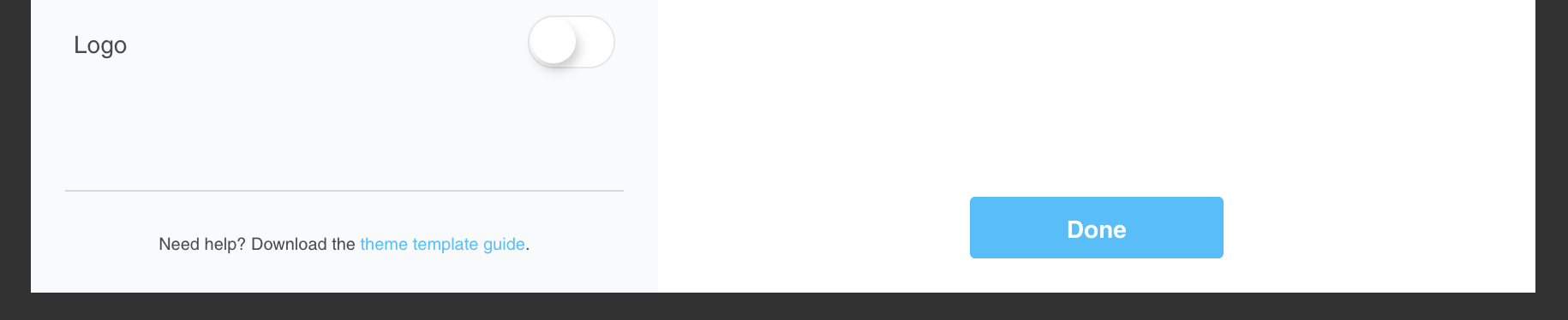
Once you have selected your options, click on the "View Larger" option under the right hand thumbnail to preview how your theme will look.

Once you're satisfied with your customizations, press the Done button to save your new Collection to your Custom Themes.
When it comes time to add your theme to your job, you will attach a price sheet that is associated with the lab with which your themes share. Once it is attached, you will see the custom themes that belong to that lab populate below.

Choose which one you wish to use for your job, as well as any other theming options for products that do not support custom themes. Once you have your themes selected, press the Save button.
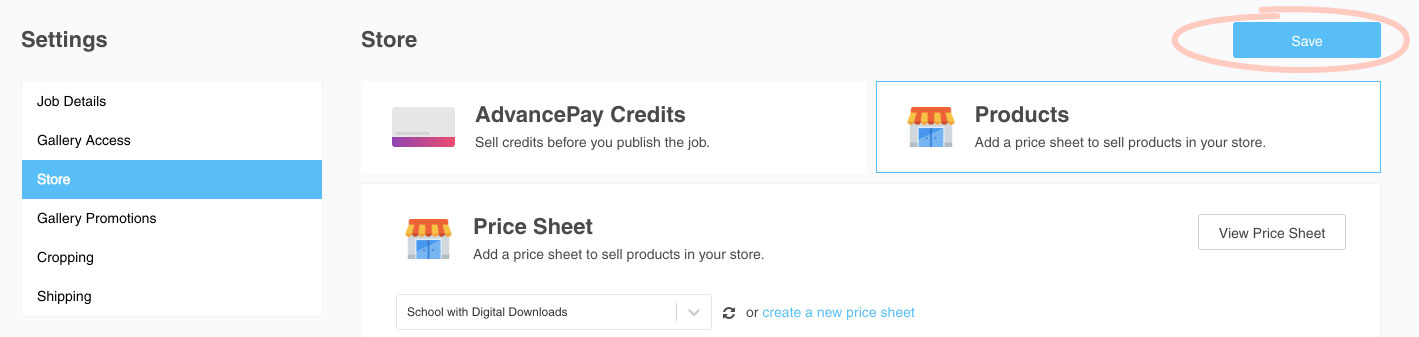
Additionally, directly next to the Price Sheet section is the AdvancePay section.
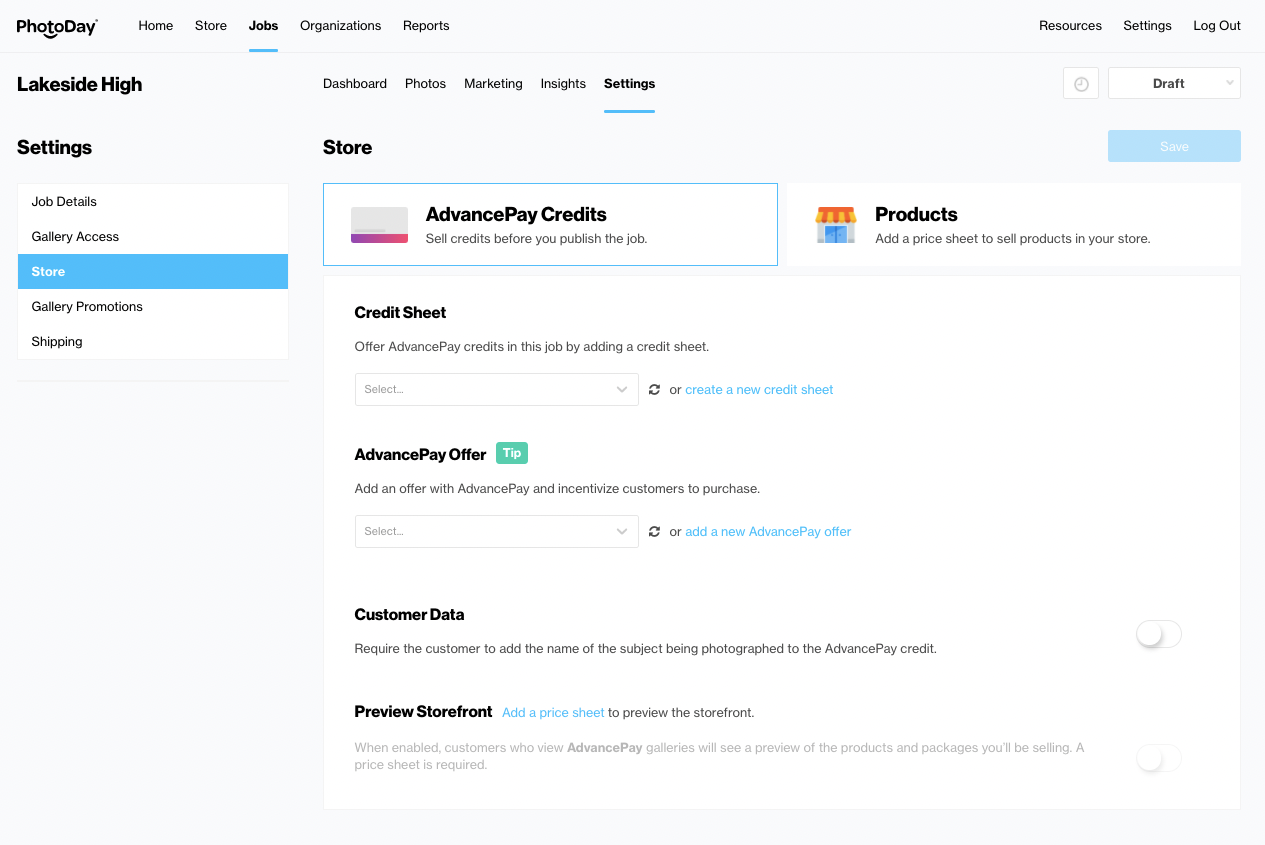
This section will allow you to optionally add an AdvancePay credit sheet. If you have created one previously, select the one you wish to attach from the drop down menu. Alternatively, if you wish to create a new one at this stage, click the “create a new credit sheet” option.
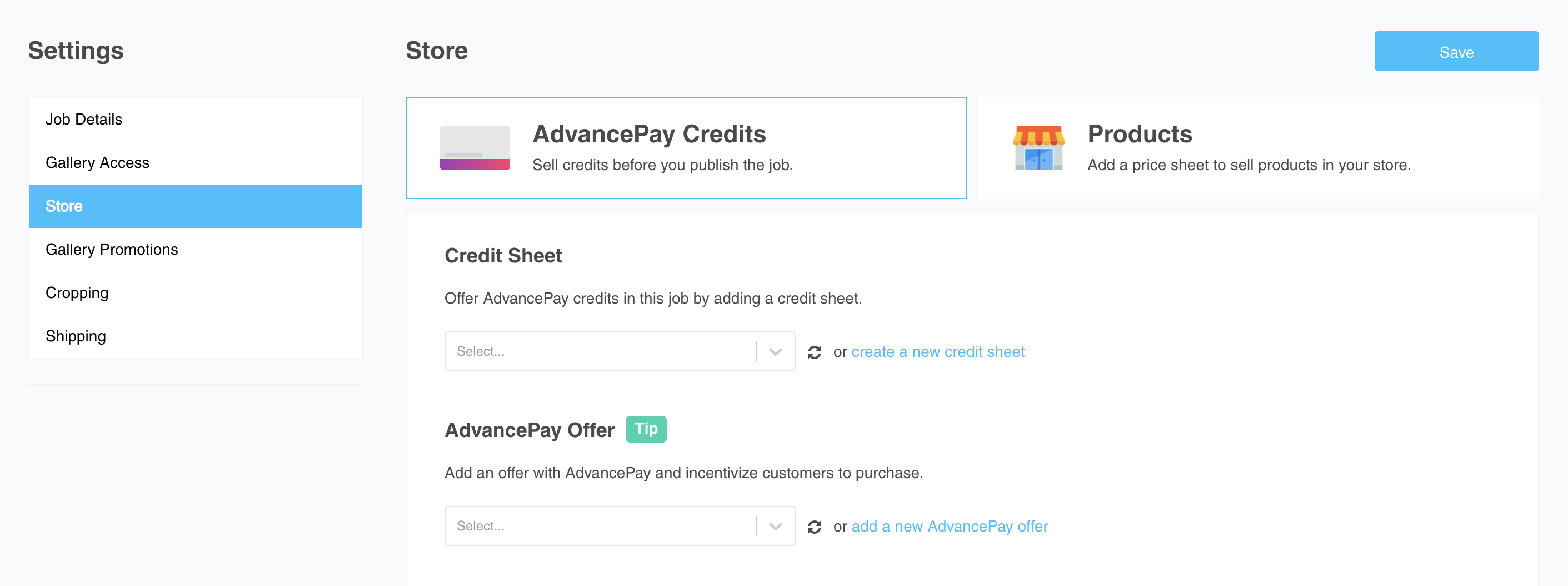
You will also be able to attach an offer from the drop down menu within this section as an incentive to customers to purchase an AdvancePay credit. The code for this offer will be given out via SMS upon purchase of a credit, and will cease to be given out once your gallery has been published. You also have the option of creating an entirely new offer by clicking on the “create a new AdvancePay offer” option.

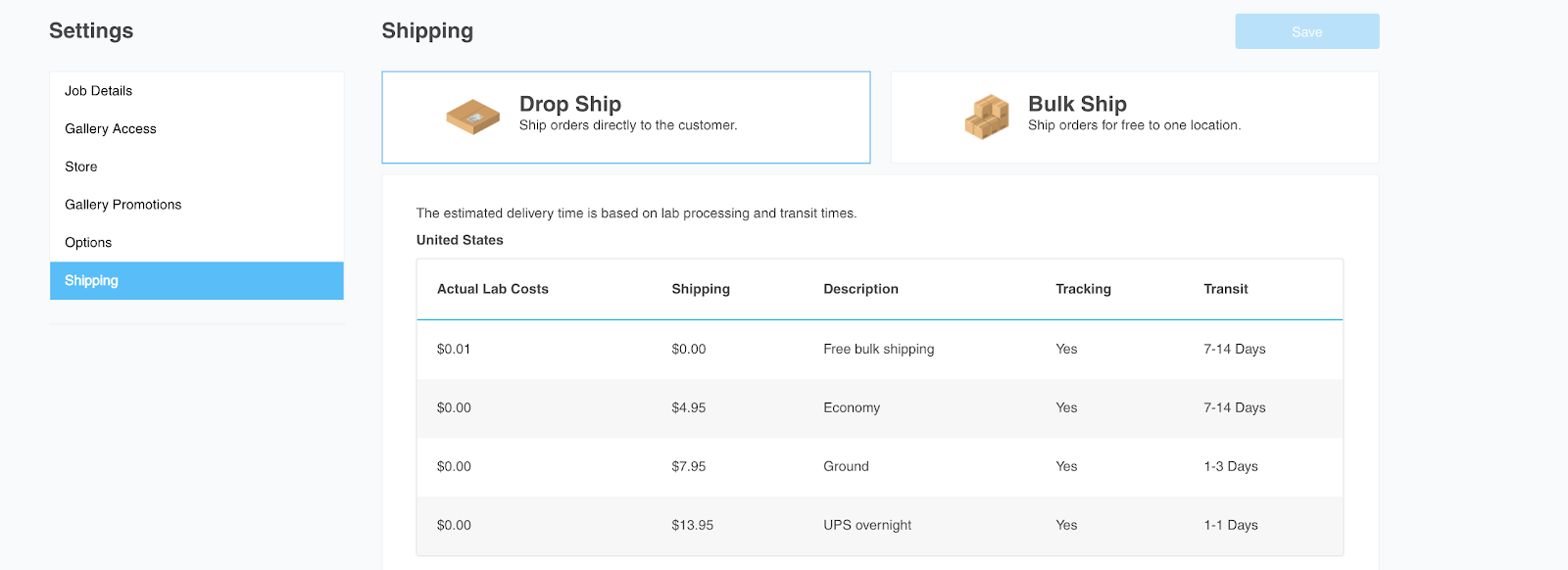
Finally in the Shipping section, you will be able to view the lab shipping rates for the price sheet you've attached to your job under the Drop Shipping tab.
If the , you will also be able to enter the necessary shipping information under the Bulk Ship tab.
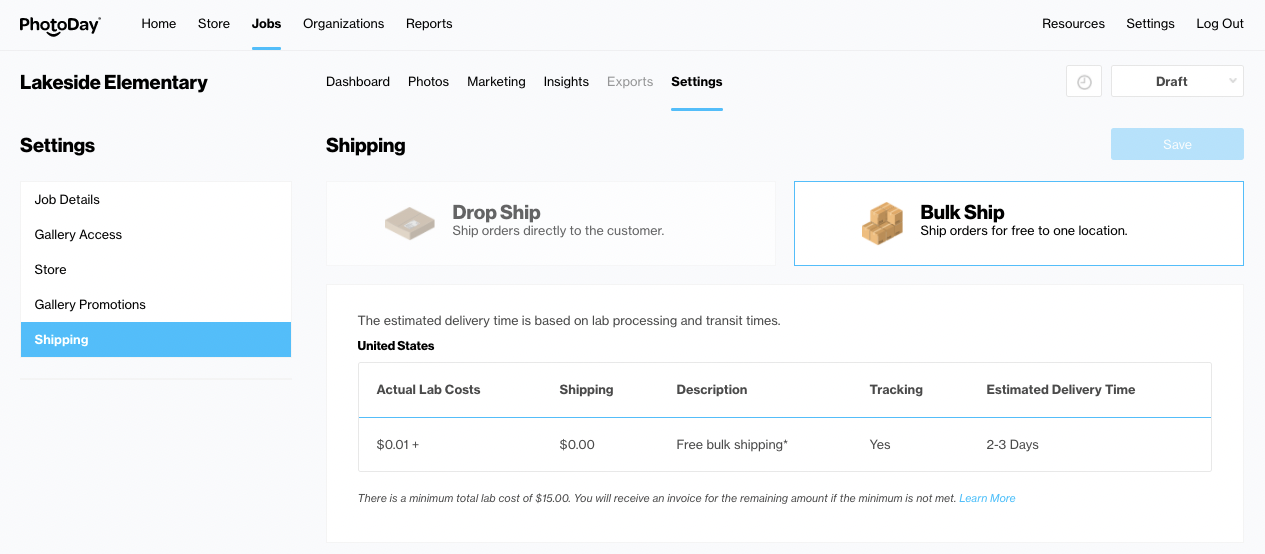
Under this tab, you will be able to specify a Deadline Date, which denotes the date the bulk order will be shipped to your Organization.

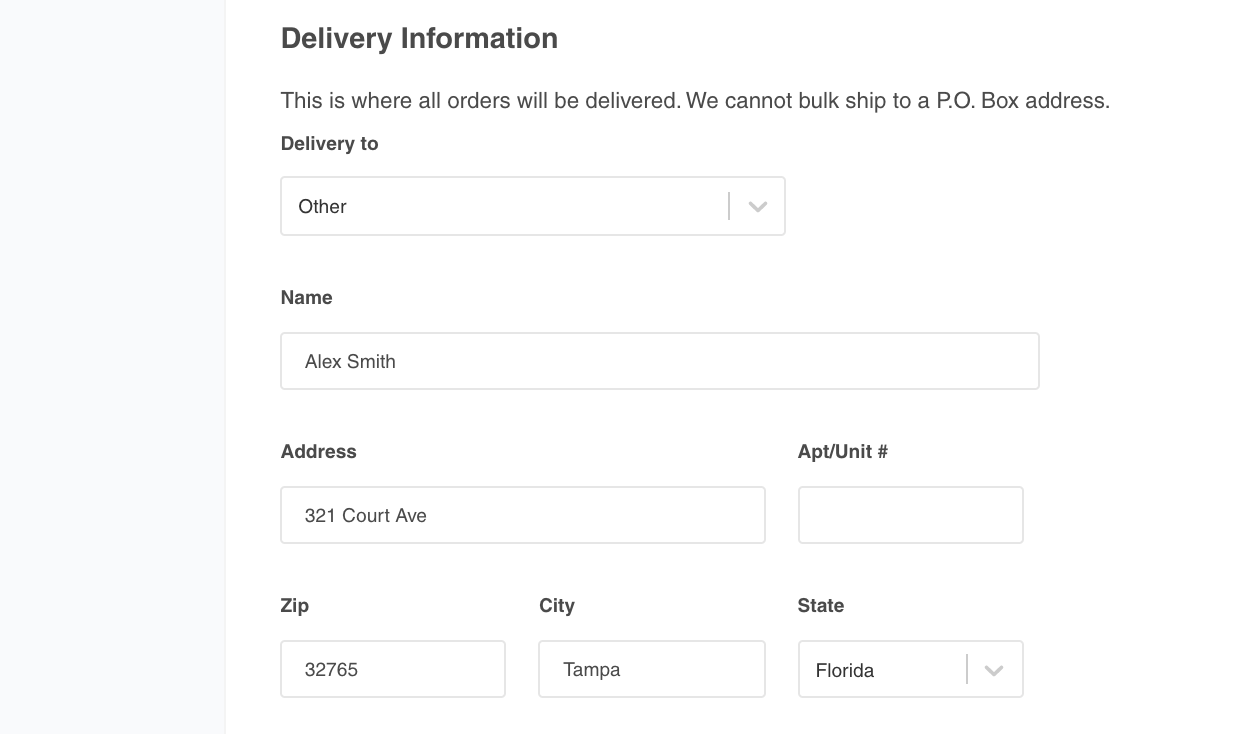
Under Delivery Information, you can select your price sheet's Organization from the drop-down menu, which will auto-populate the address form data. You can select 'Other' from the menu as well if the delivery address differs from your default Organization data.
Finally, under Delivery Note, you can include any information you wish to display to the customer in their shopping cart before checkout. This may include pickup instructions from the Organization, relevant dates, or any number of things you may wish to communicate about this bulk order.

Once you have populated this initial information for your job, it is now time to add your photos - and people data if you’re setting up a private gallery!