
XVII. Promoting Your Gallery
PhotoDay provides a built-in solution for promoting your galleries to your customers via flyers. Flyers are great way to promote and get the word out about both photos and picture day itself through print, email or as an HTML link. Flyers include useful details that will help guide your potential customers to the gallery, where they can find and purchase their photos with ease.
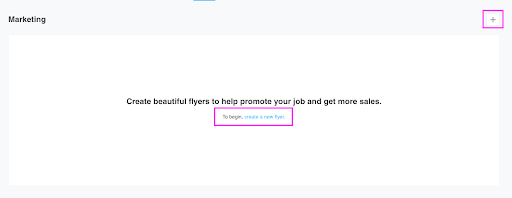
In order to begin creating a flyer, navigate to the Marketing section within your gallery.

You will then be brought to the Flyers section of your job, which may be empty if you have not yet created any flyers. Click on the + to create a new flyer.
You will then be presented with naming your flyer for your reference, and the type of flyer. The Flyer Type determines the marketing messaging on your actual flyer design and you can update this at any time.
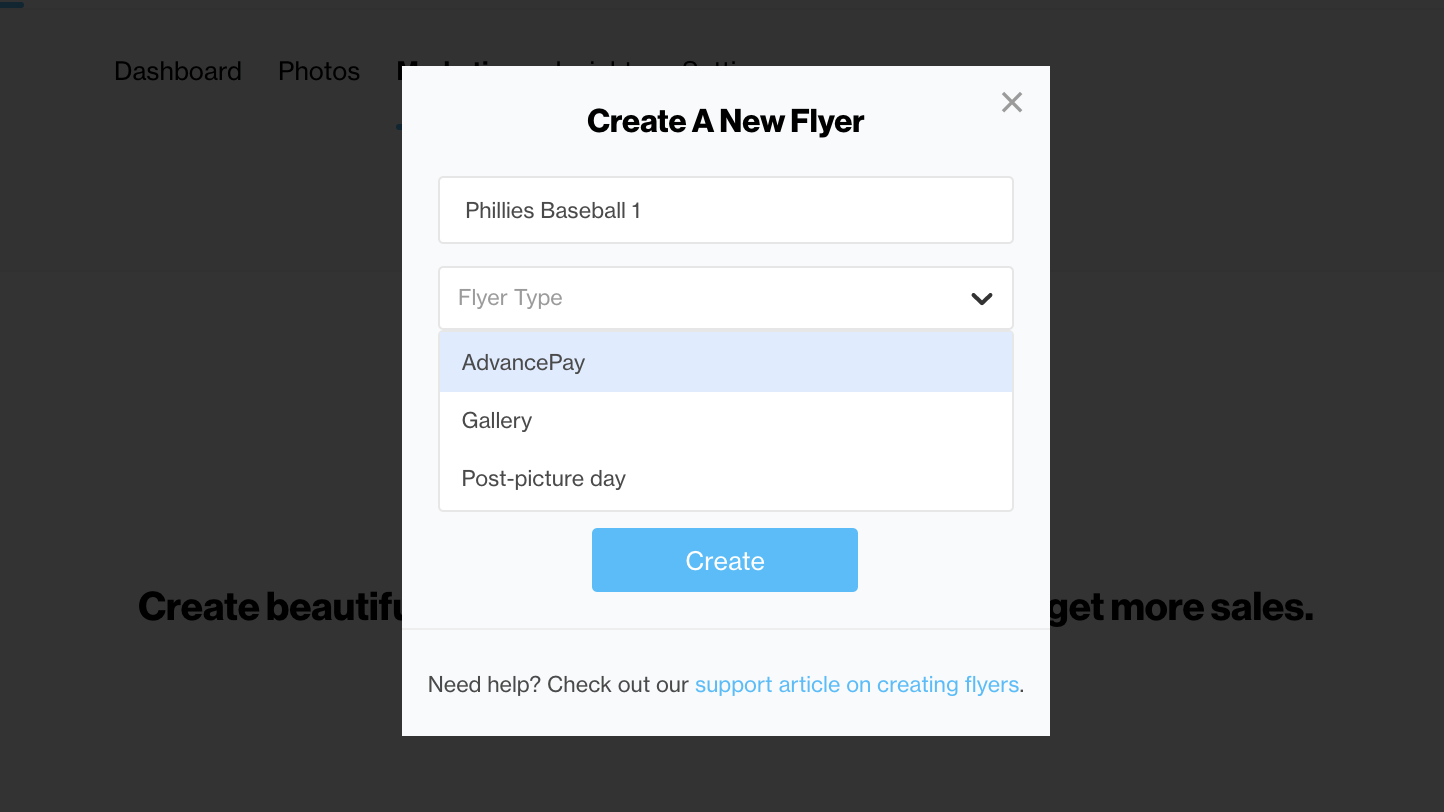
AdvancePay Flyers let your customers know how to purchase credit to go toward their photo purchases.

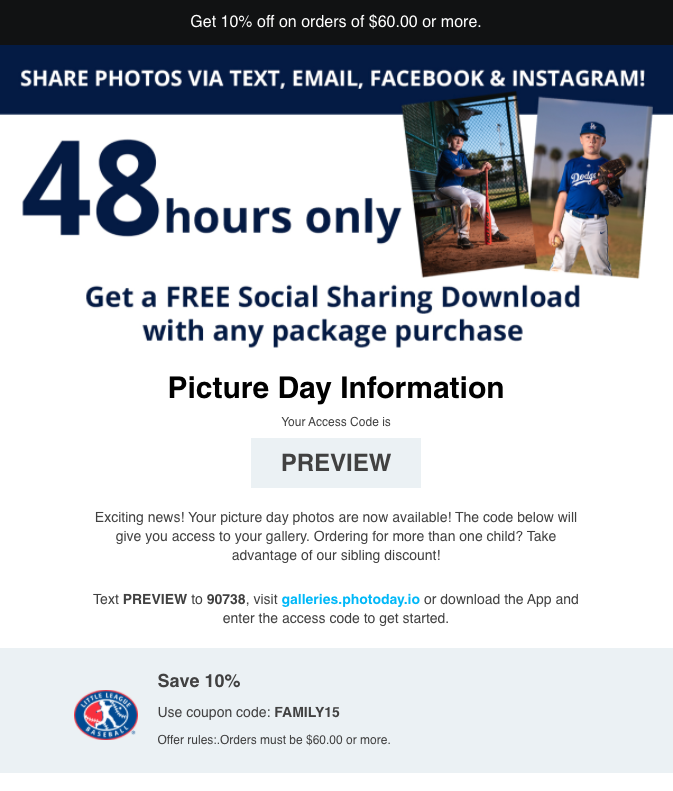
Gallery Flyers will include all details your customers need to know to access their gallery. This includes the gallery link and access code. If you’re creating flyers for a private gallery, PhotoDay will generate a unique flyer for each person with their private access code.

Gallery with Offer Flyers includes an offer you have previously created to help promote your gallery. Just pick the offer you'd like, and it'll automatically be added to your flyer.

Post Picture Day Flyers serve as a gentle reminder to organizations and parents after picture day has passed that their photos are available to purchase. This can help provide a few extra sales after the initial rush! Just like the Gallery Offer Template, you can attach an offer to give your customers a little extra incentive to order.

Once you're done creating your flyer and depending on the gallery type, you’ll be presented with a few options on what to do next.
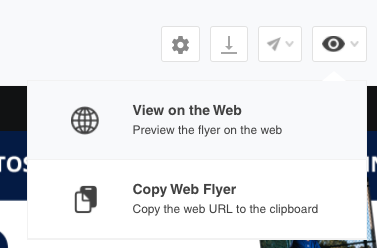
Download your flyer(s) as a PDF file, which you can use to print and distribute yourself.
Email your flyer(s) to your contacts at an organization.
Group/Public Galleries: Upload a CSV of emails to send the flyer.
Private Gallery: If your data has emails included, you can email each person their unique private access code.
Or, view your flyer as a custom webpage via the Web URL share option. If you are creating flyers for a private gallery, only the Email option will be available to you.
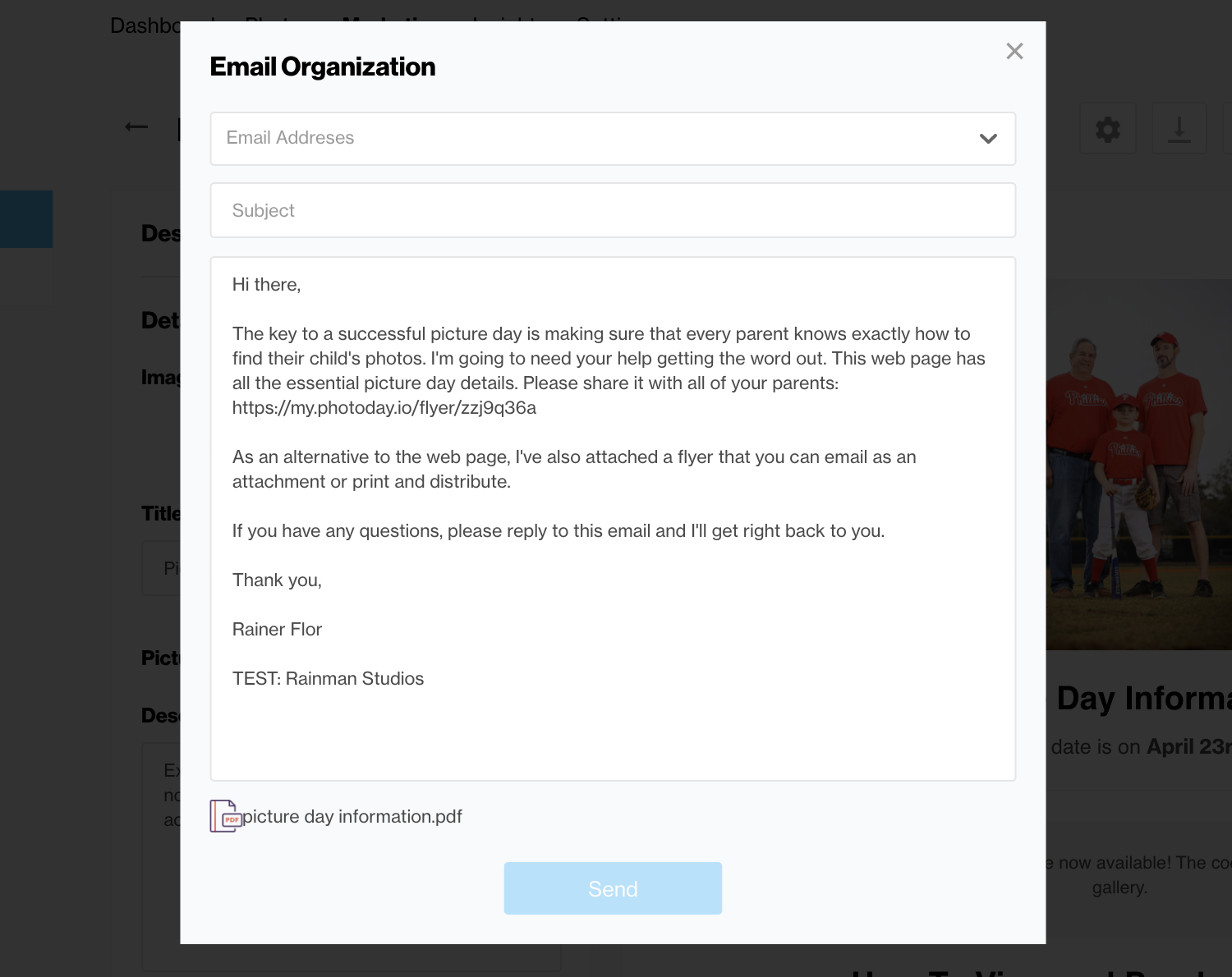
If you select the Email share option, this will bring up a new window where you can fill out the recipient and subject lines, as well as any additional information you'd like to provide along with your flyer in the message box.
Or, you can choose to email the flyer to each person.