
V. Creating Your Price Sheets
You've got your account created. You've got your studio information completed. Now, it’s time to begin creating price sheets, which function to add products, packages, and pricing to the storefront. To get there, you’ll need to navigate to the Store section of the Studio Panel.
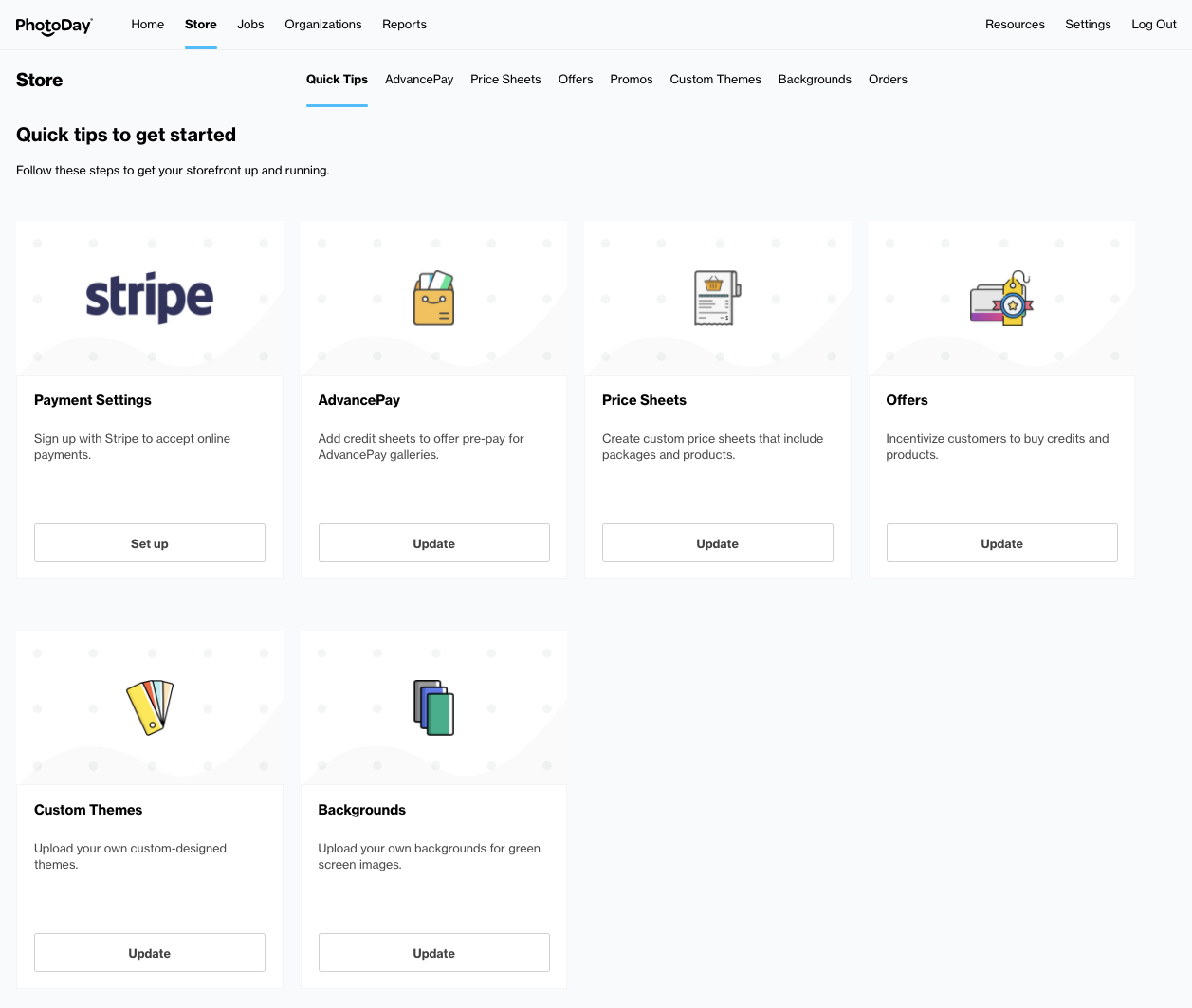
Once there, you’ll see a few items from which you can select. We’ll take a look at the first two for now: Payment Settings and Price Sheets.
Payment Settings will bring studios back to your Payments section under the . It acts as a quick shortcut in case you need to modify your Stripe account without having to navigate through your Settings. Let’s now move on to creating a Price Sheet.
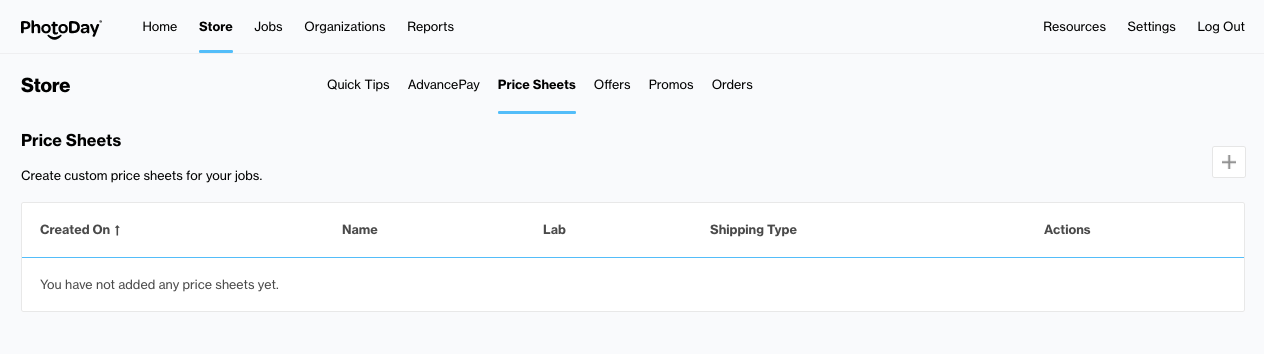
Upon first visiting the Price Sheets section, you will be greeted with a list of your existing price sheets, which at this stage, should be completely empty! If you would like to go ahead and begin building your first price sheet, go ahead and click on the “Add Price Sheet” button at the top right of your screen.
This brings up the Add a New Price Sheet window, where you will see several empty information fields that you need to first fill.
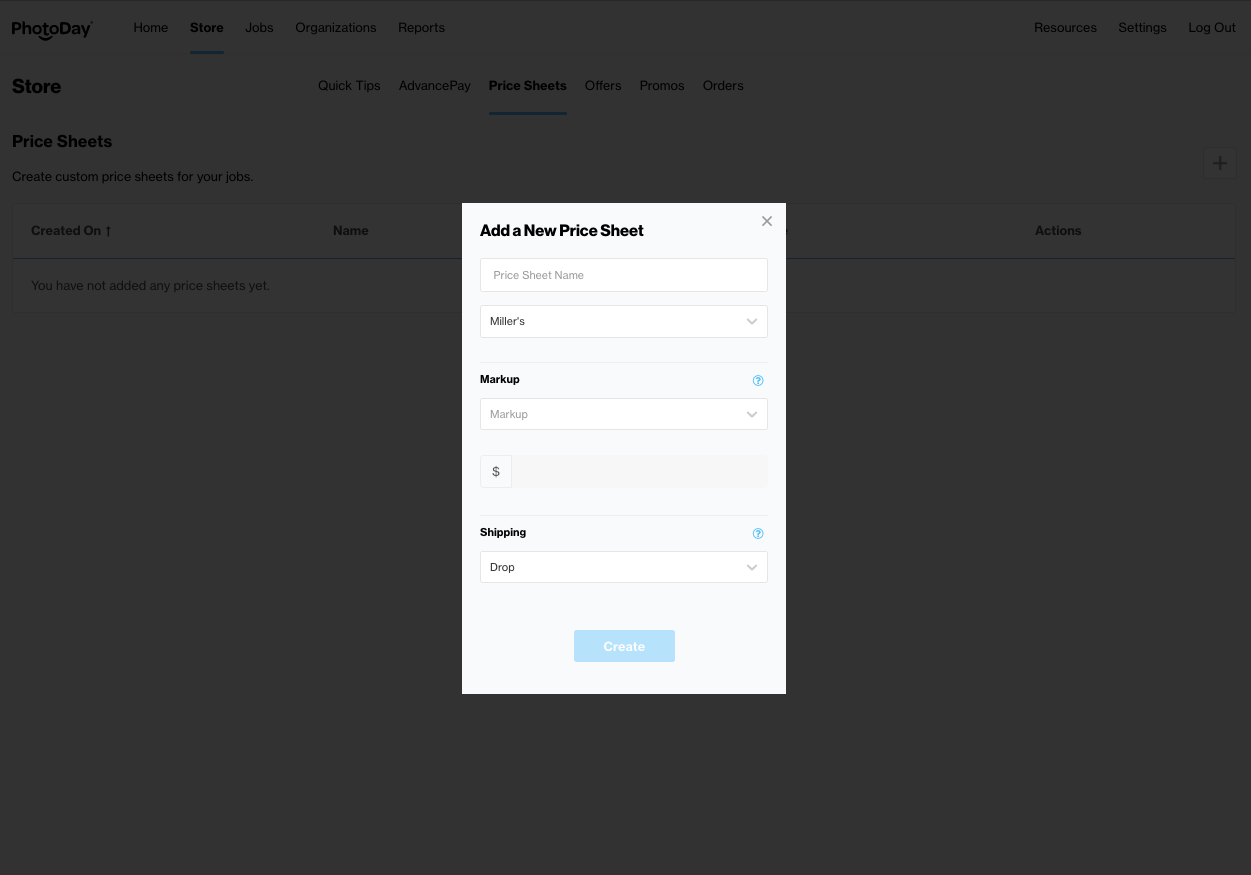
Start by giving your price sheet a name - it doesn’t have to be anything catchy, just something for internal reference that’s easily recognizable for you! To the right of the name field, you’ll be able to select which lab with which you would like this price sheet associated. If there’s only one lab attached to the account, this field will not be able to be modified.
Next, you’ll need to choose what type of markup you would like placed on this price sheet.
Markups act as an easy starting point for pricing your items - that is, determining your profit on top of the base lab cost of the items you are about to add. A studio can either choose to determine the markup by a percentage of the lab cost, or a fixed dollar amount on top of the lab cost. This is just a convenient starting point - you can always change prices on individual products and packages.
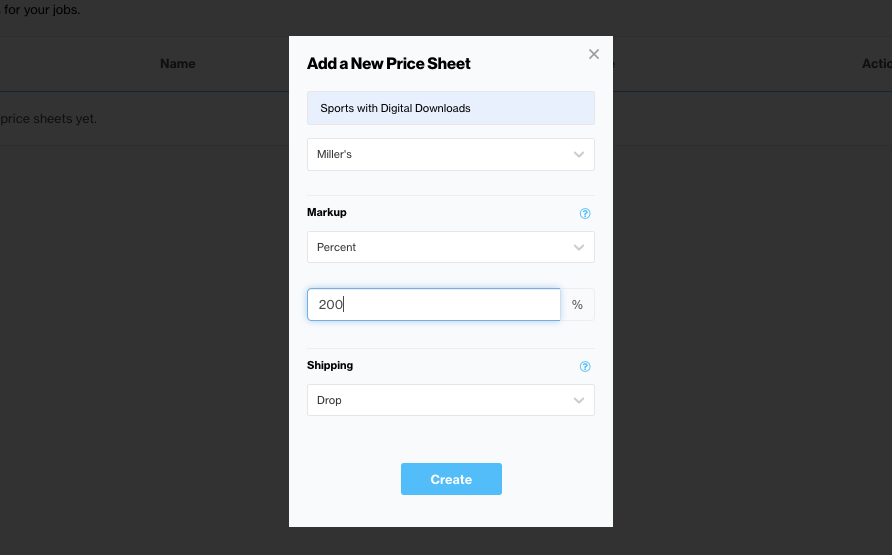
Finally, you have the option of determining the manner of shipping available to your customers purchasing from this price sheet. If the lab with which you are associating this price sheet offers bulk shipping, you will be able to select from three options. Please note that once you have confirmed a shipping method for a price sheet, it cannot be changed - you will need to create another price sheet and assign another method should you wish to change it.

Drop Shipping is the default manner in which PhotoDay orders are delivered - that is, each order is shipped directly to the customer once fulfilled by the lab.
Bulk Shipping will have the customer's order shipped to a common location for other orders in your job. For example, if one of your Organizations is a school requesting a gallery of class photos to be shipped to their location to be manually handed to children and parents, this would be the option to select. , if you have Bulk Shipping selected, you will be able to specify a Deadline Date by which you would like all orders to be shipped to the Organization. Please note that the job will automatically expire after the Deadline Date. If you wish to republish your gallery after it expires, you will need to enter a new Deadline Date, or attached a non-bulk price sheet,
Bulk or Drop Shipping combines the previous two options. If a customer places an order after the Deadline Date for bulk shipping, the shipping method defaults back to Drop.
After all fields have been completed, click the Save Price Sheet button, which will automatically bring you to where you can now add items and create packages. To view a current list of items available for bulk shipping, visit this article here.
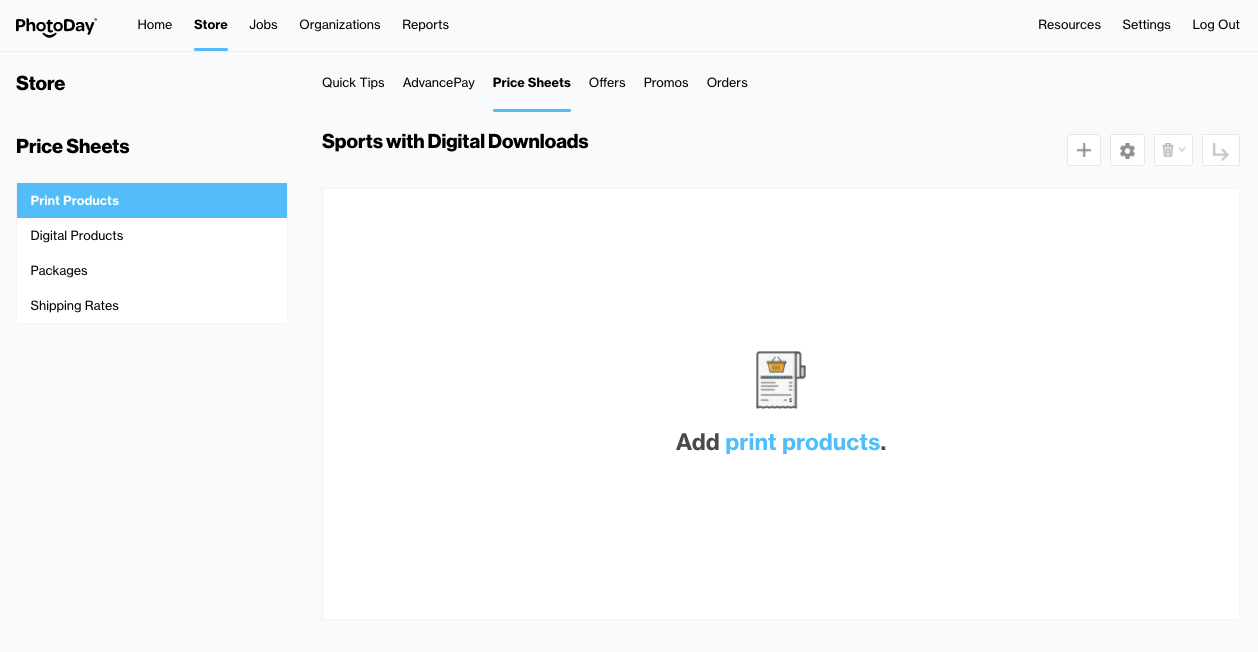
To add items to your new price sheet, you will click on the “Add Products” button at the top of the dashboard.
This will bring up the Add Products window.
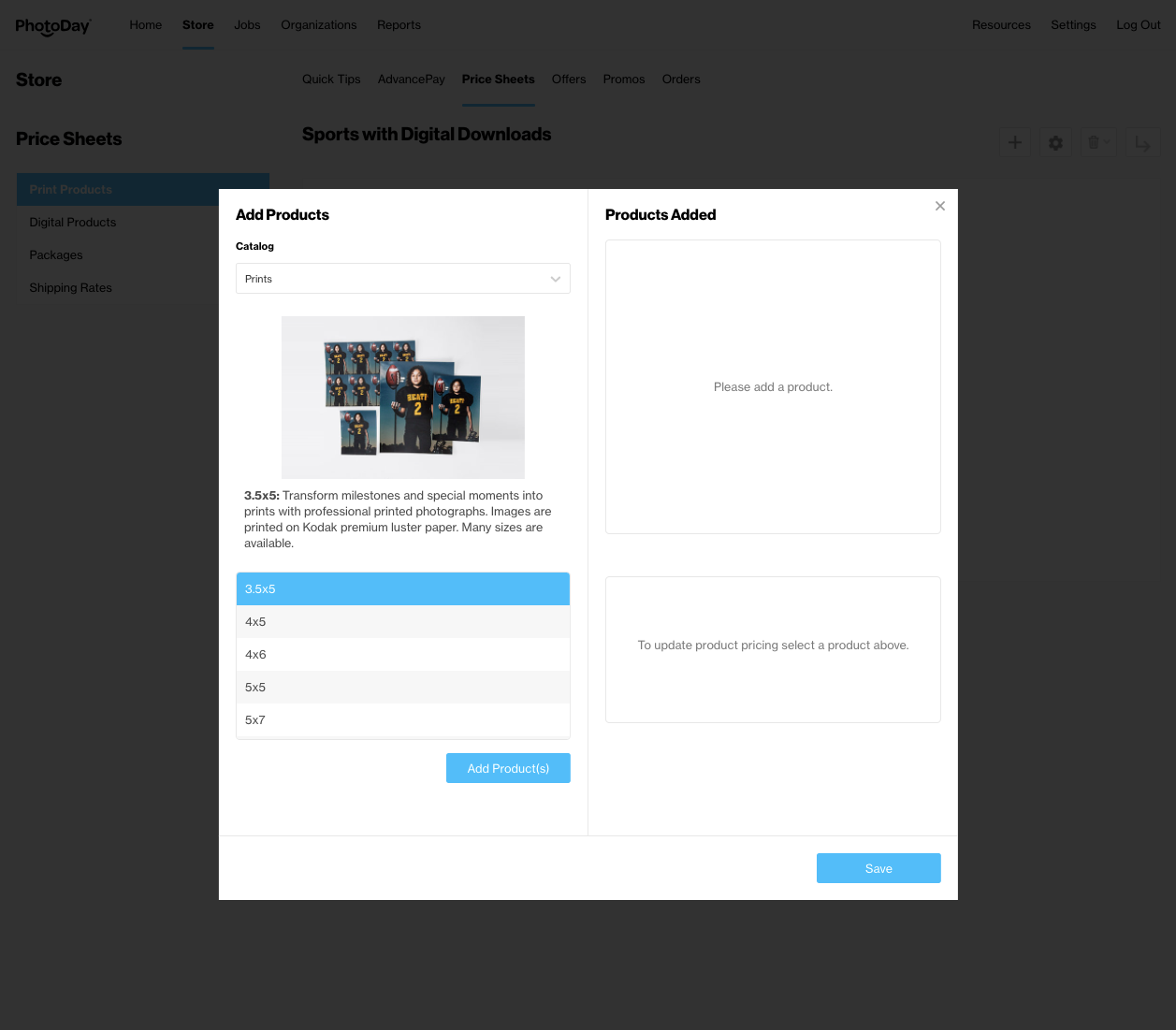
Here, you can begin choosing which a la carte items you would like to add to your new price sheet. Lab items are typically subdivided into a few categories - these are the same categories that will appear to your customer. Select the item category by selecting from this dropdown menu within the window to choose products.
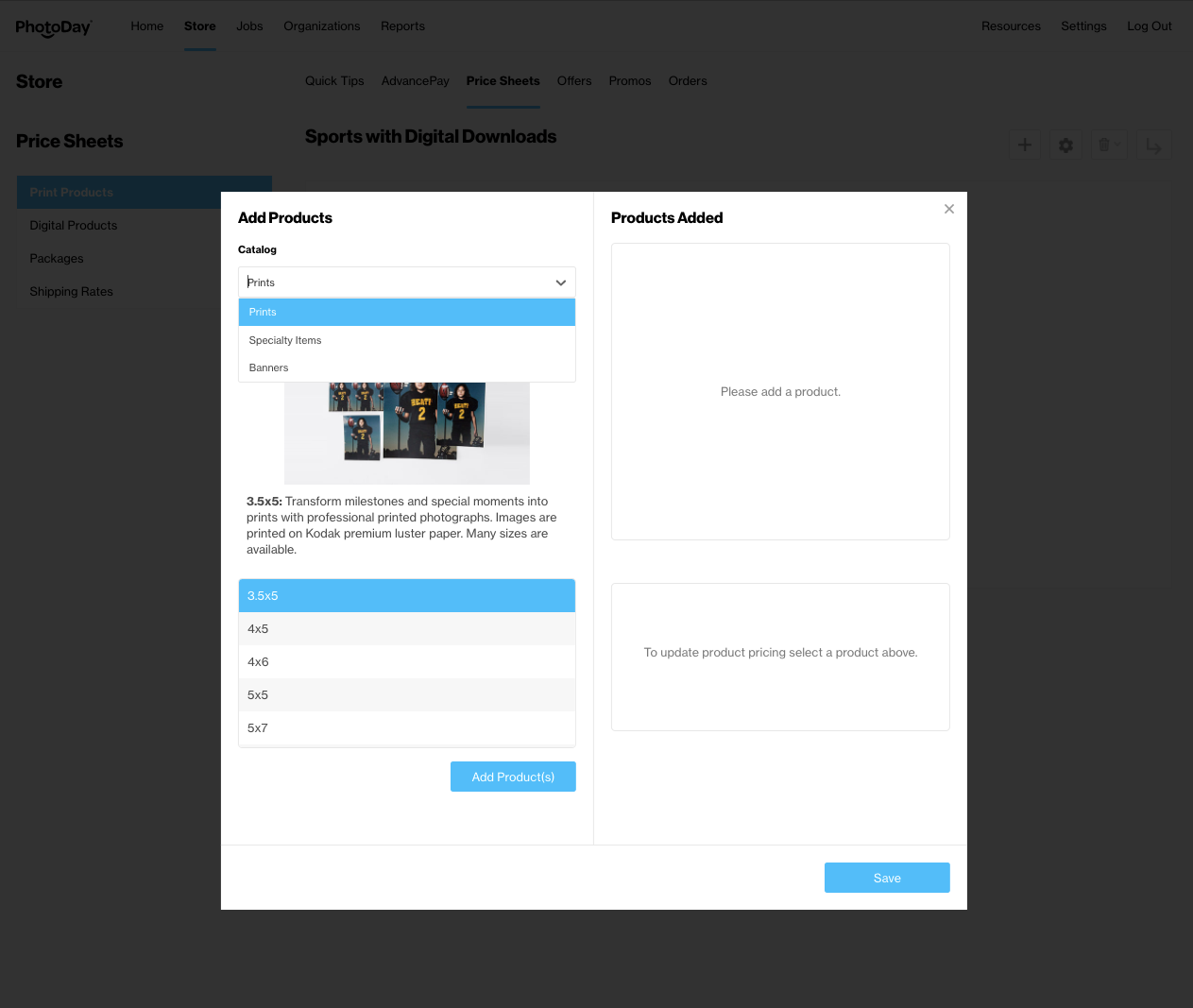
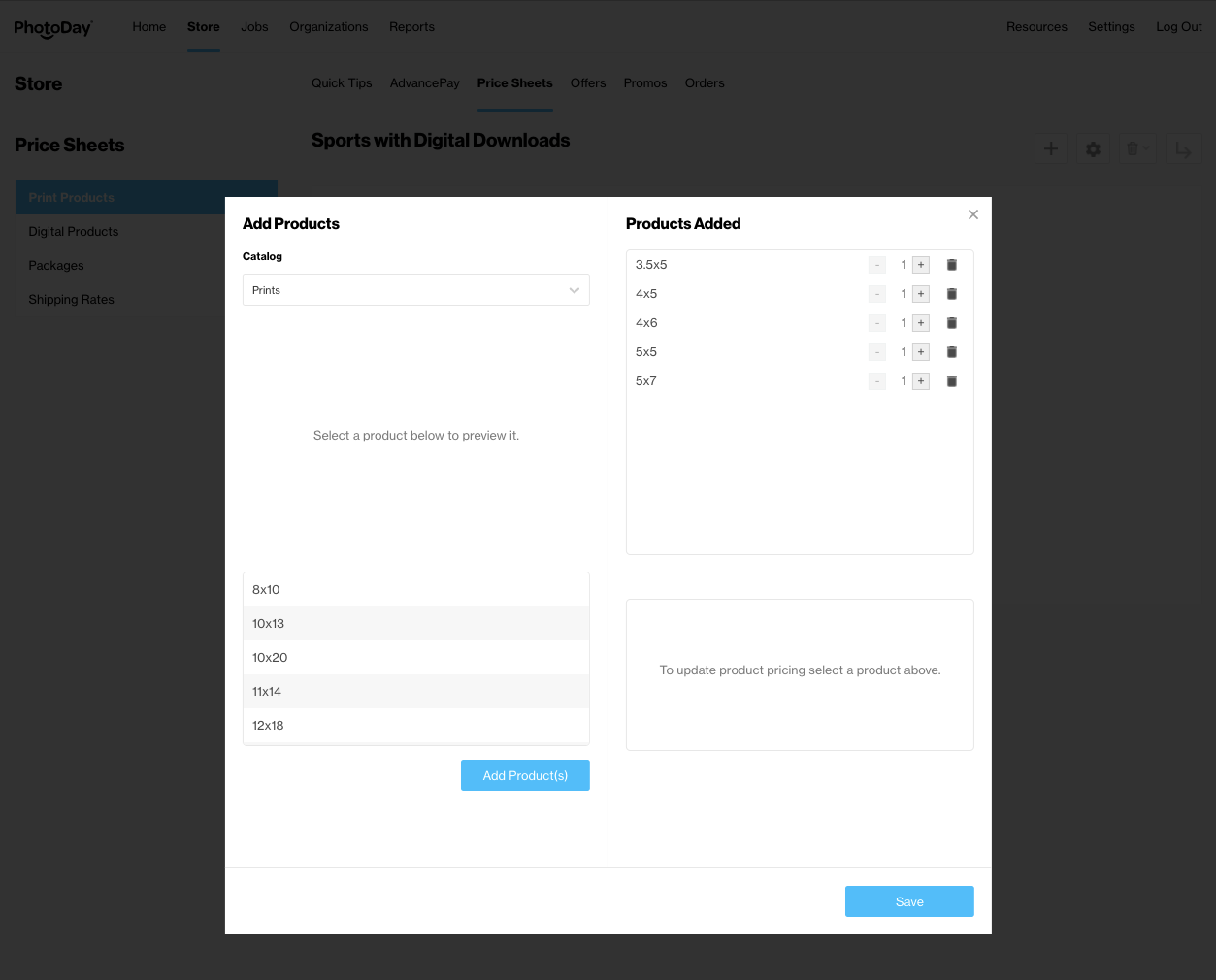
Items can be added to price sheets by selecting them from the item list on the left, and then clicking on the Add Product(s) button. You can highlight more than one and move them over in bulk if you’d like.
Once you are satisfied with your item selection, you can go ahead and click the Save button.
You will now see each a la carte item you have added to your price sheet, along with its base lab cost, your markup, and its final cost. The final cost of individual items can be further modified from here if you are not satisfied with your default markup as well. Also, please note that you can move around any of the products to customize the order in which it is viewed to your customer.
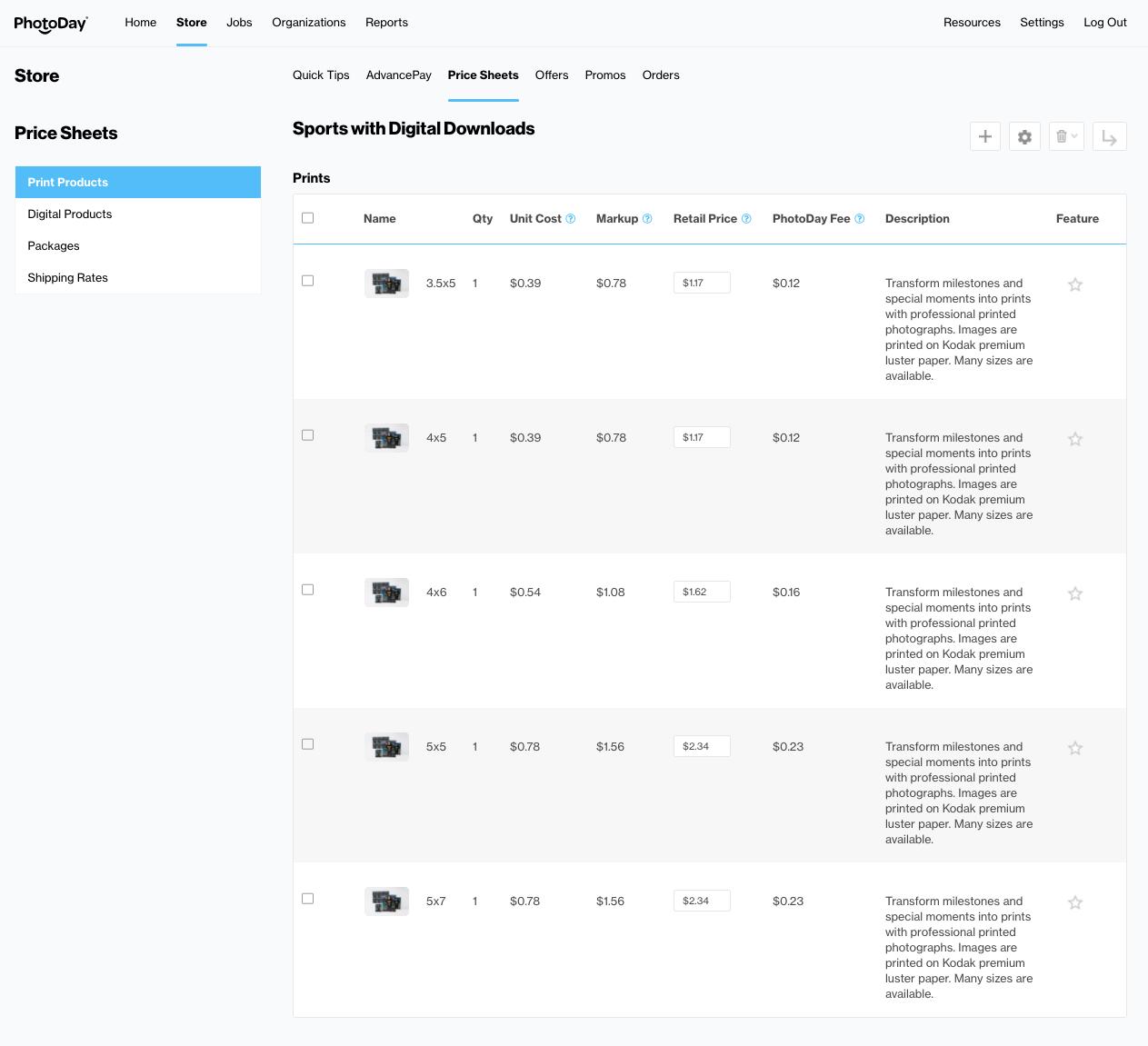
You can feature up to 5 a la carte items by tapping the star. These items will appear in the cart and highlight them for your customers. Popular products are selected by PhotoDay and presented automatically to your customers. These are the top-selling products with PhotoDay + your partner lab that you make available on your price sheets. PhotoDay uses a special algorithm to display these to your customer.
So, you have now created your first price sheet, loaded with a la carte items you’d like to sell to your customers! However, something’s missing - packages. Packages are a great way to provide a deal to customers by providing them an incentive to purchase multiple items. How do you create a package? First, you’ll navigate to the Packages section on the left side of your screen.
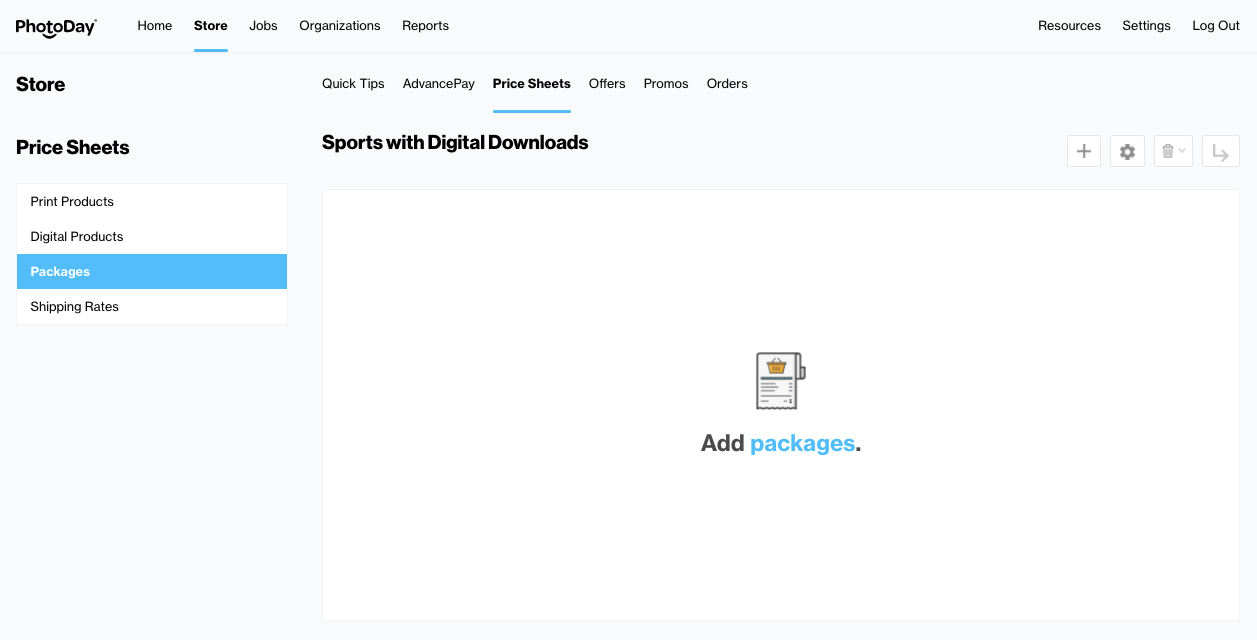
On the currently empty packages list, you will select “Add Package”, which will bring up a new window.
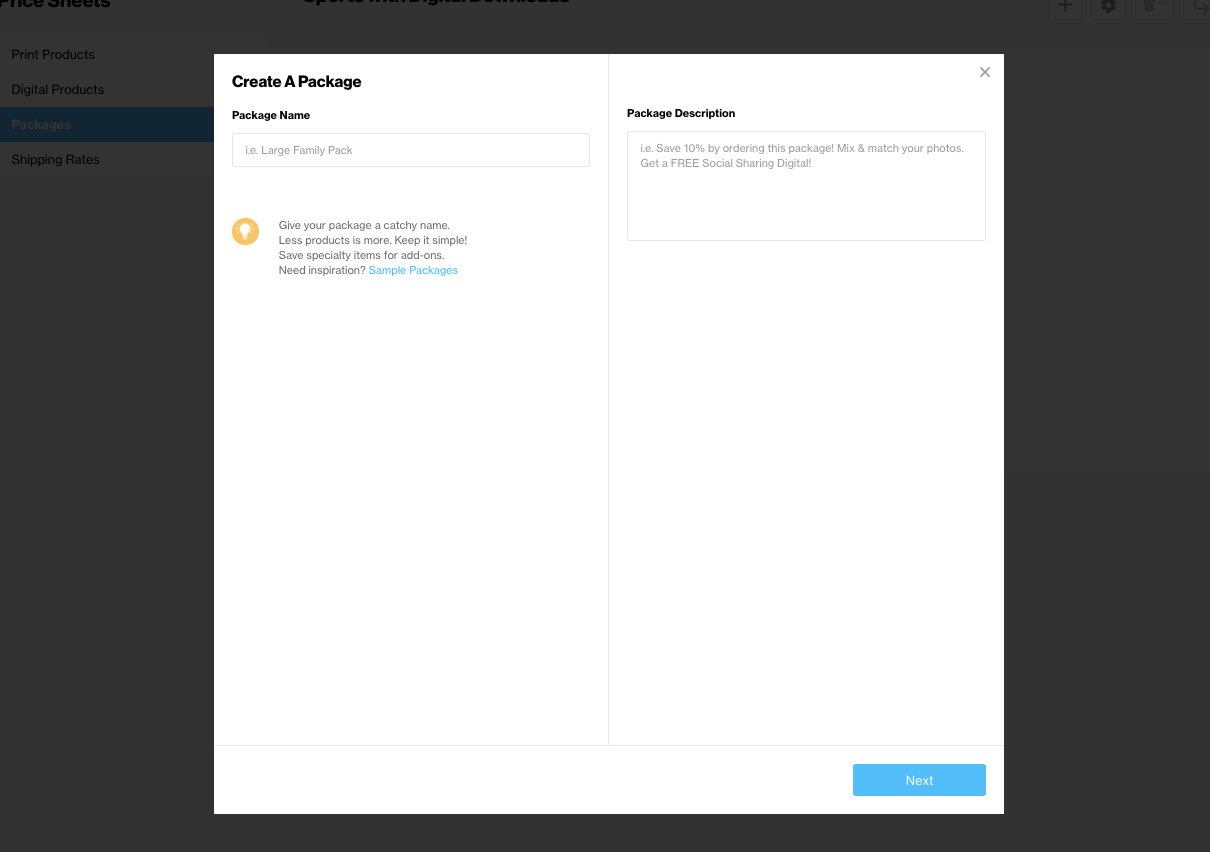
Here, you will be required to give your package a name. This name will be visible to customers, so you want to make it descriptive, yet catchy! You will also need to fill in a short description, which will also be visible to the customer - be sure to highlight the percentage savings off the individual prices of the products included in the package to create a powerful incentive.
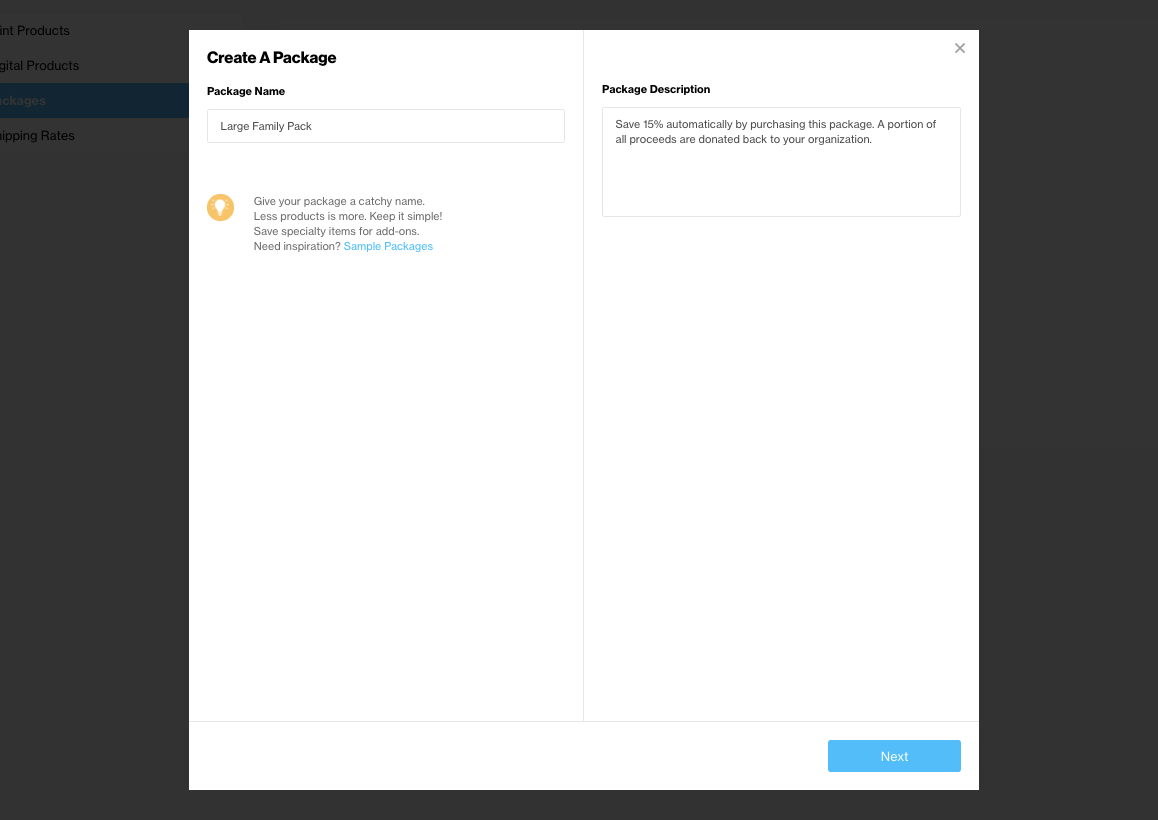
Once those fields are filled out, you’ll click the ‘Next’ button, which will then allow you to add items to your package just as you did for your a la carte section. Below the item addition columns, there will be boxes denoting the lab cost of the total items in a package, the total markup of the items placed in the package, as well as the total calculated price of the package.
Just like with a la carte items, the final package price can be modified to anything you wish!

Once a package is constructed and priced accordingly, click the Save button to add that package to your price sheet. Please note, just like products, packages can be moved around in any order to customize the way it is viewed to your customer. Once a price sheet is attached to a job (we’ll show you how to do that in just a bit), the a la carte items and packages will be reflected on the customer-facing view of the storefront.
Packages Note: All packages allow customers to mix and match poses. When building packages, you have an option to limit the number of poses by selling in “sheets”.
Visual Example: By adding a 5x7 to your package twice, as two separate line items, your customer is able to mix and match a different image on each 5x7.
However, if you add a 5x7 to a package and change the quantity to 2, then the customer will only be able to add one image to the set of 2 5x7s
https://guide.photoday.io/jobs
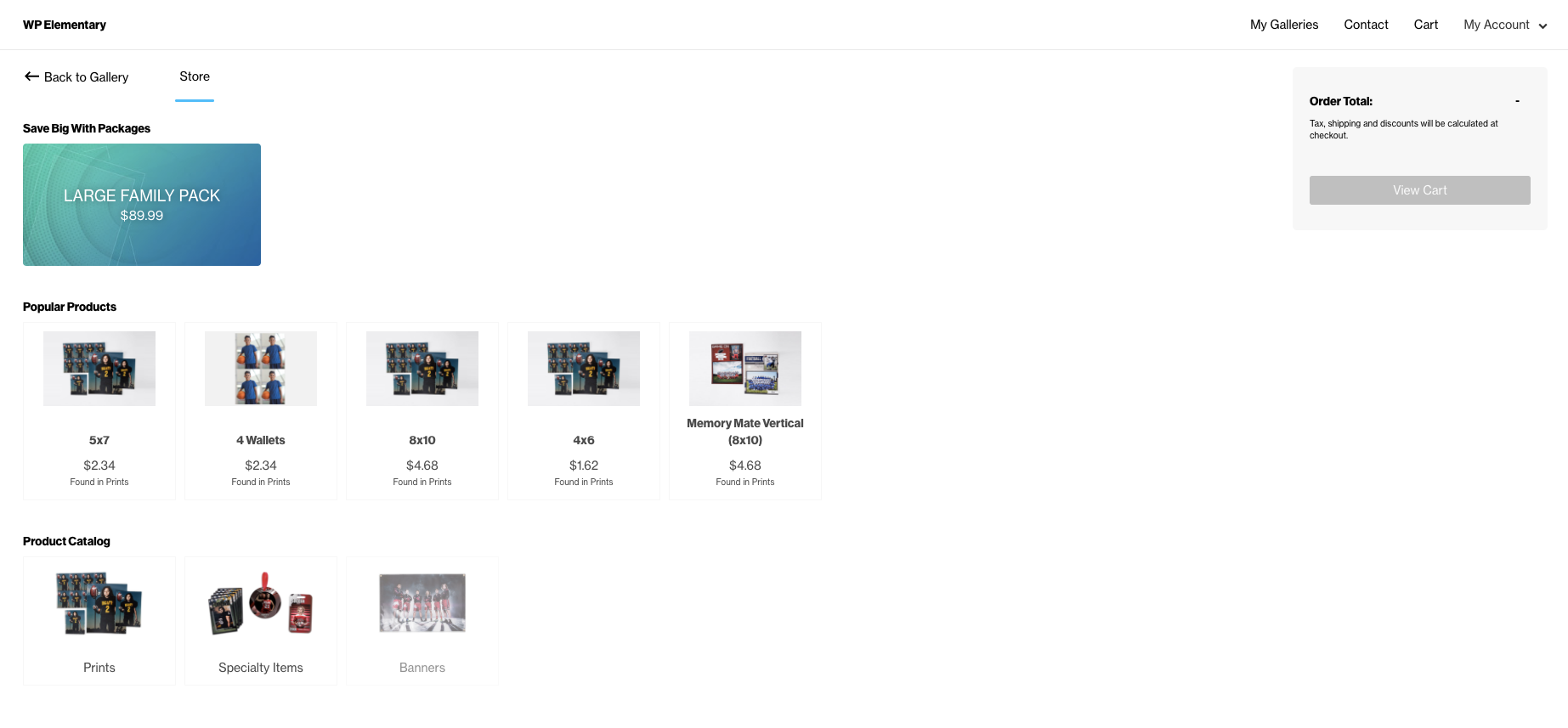
Customers will be able to choose from different categories of a la carte items that have been added to a price sheet, as well as be able to select packages.
So, you now have a price sheet you like, loaded with items and packages you feel your customers will love. What’s next? It’s time to create some incentives with AdvancePay.