
VI. AdvancePay
AdvancePay is PhotoDay’s answer to traditional pre-pay. Whereas with paper forms, parents would select their photo packages and pay before photos were taken, with AdvancePay, customers can purchase a credit before picture day that they can apply to their photo order after picture day. For photographers, this means they get to lock in early sales without limiting future sales.
Customers can select from up to four AdvancePay credit amounts of your own creation, which will then be associated with the phone number with which they make the purchase.
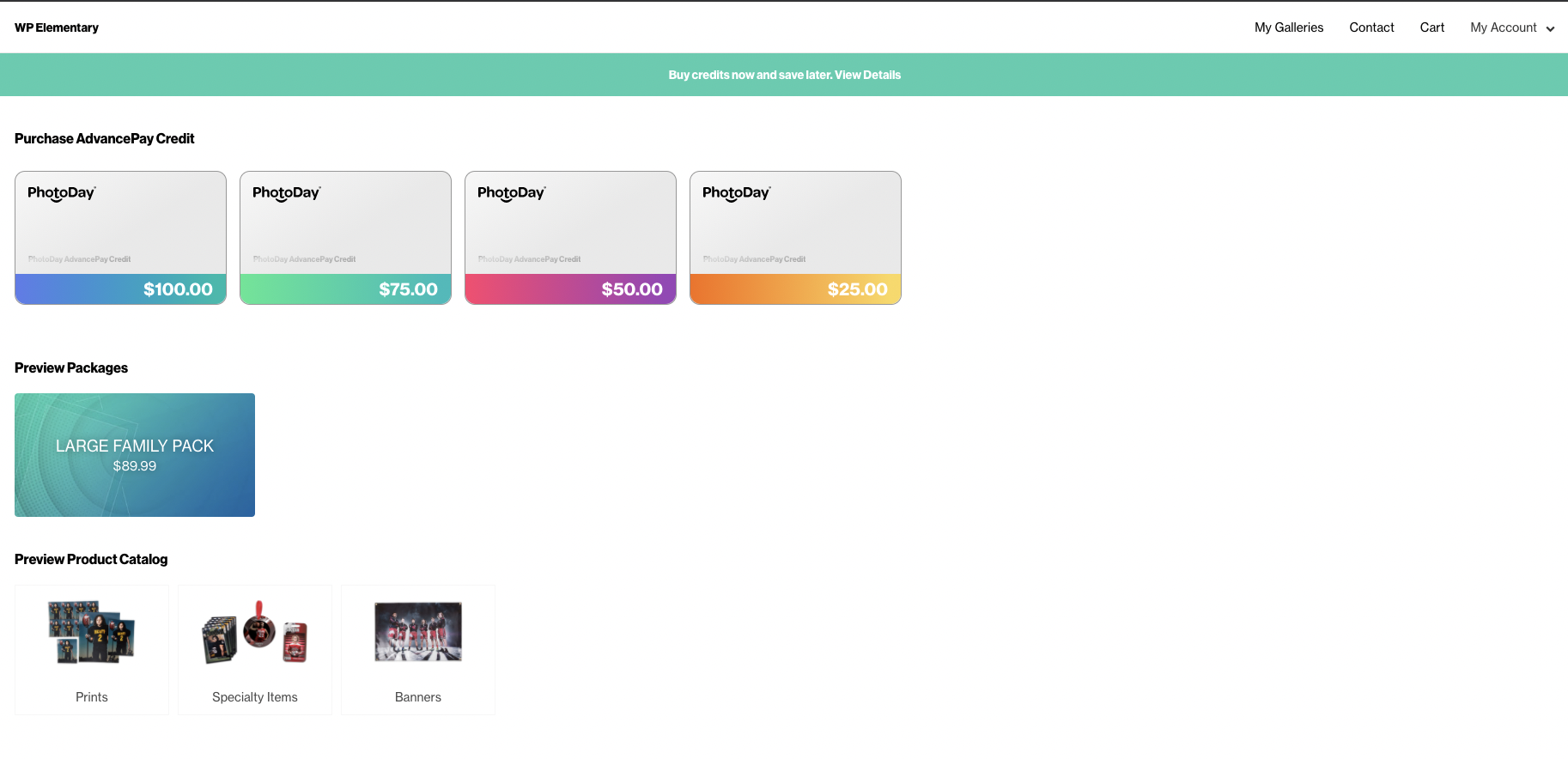
These credit amounts are set up within the AdvancePay section of the studio panel, found under Store.
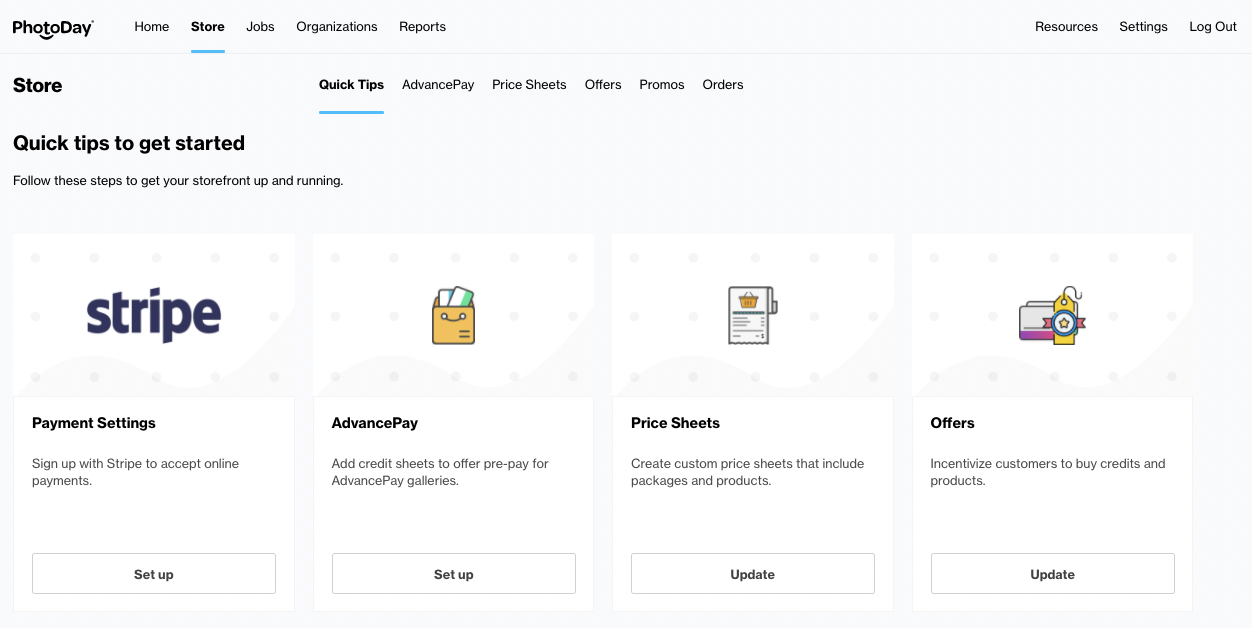
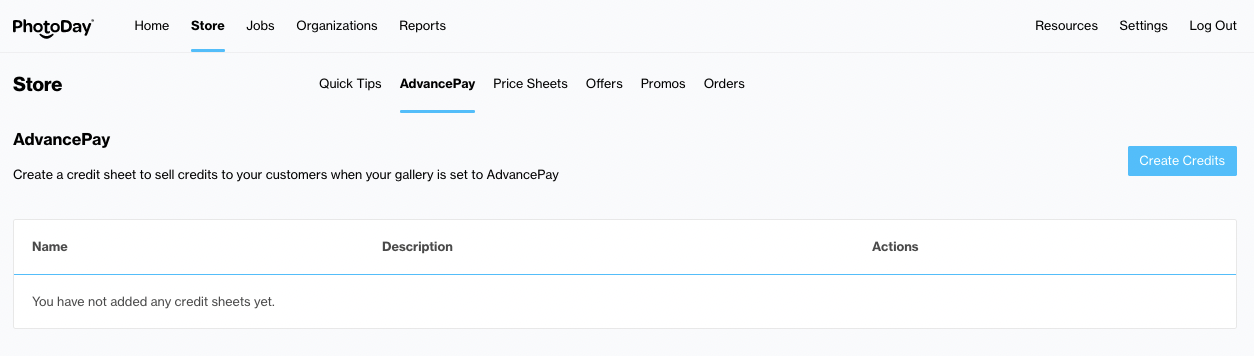
It is here where a credit sheet can be created, much in the same manner as a price sheet. Each credit sheet will contain up to four credit amounts from which a customer can choose, and can be attached to any job. To create an AdvancePay credit sheet, click on the Create Credits button on the top right of the screen.
This will bring up a window that asks you to name your new credit sheet.
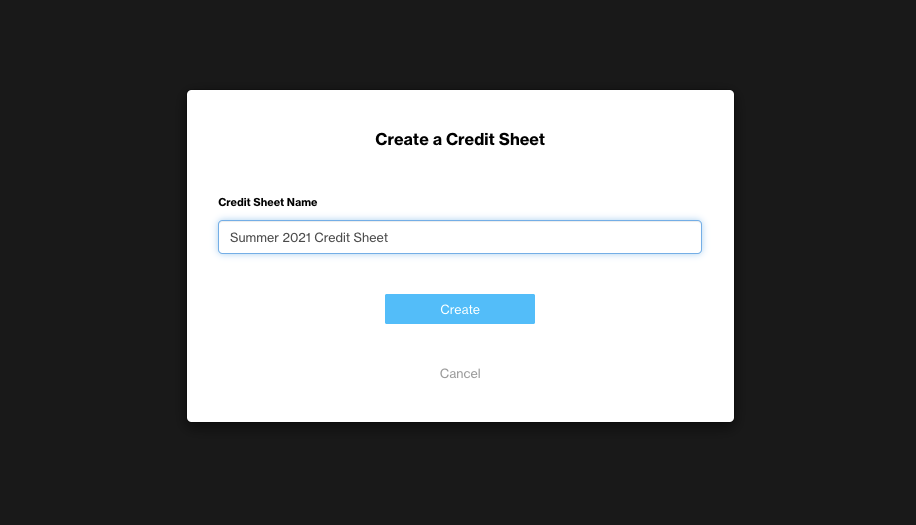
Give your sheet a name, and click the Create button. This will generate a blank credit sheet, which includes four slots in which you can enter credit amounts of your choosing.
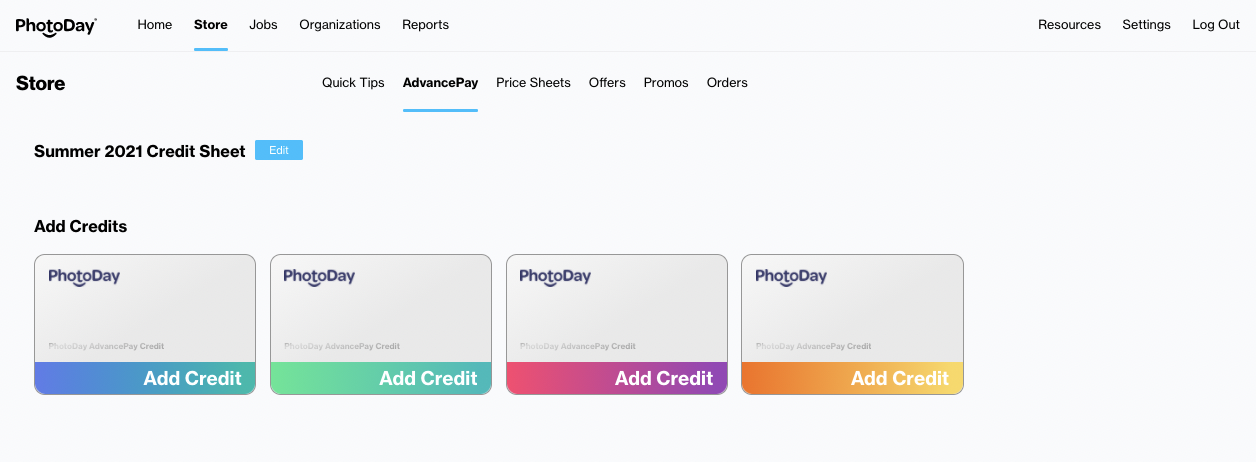
To add a credit amount, click on any of the blank credit icons, which will bring up a window in which you can add a predetermined credit amount, or a custom amount that can be added in increments of $5.00. Here, you can also add an optional description to your credit amount, just to let your customers know what they can purchase with this credit.
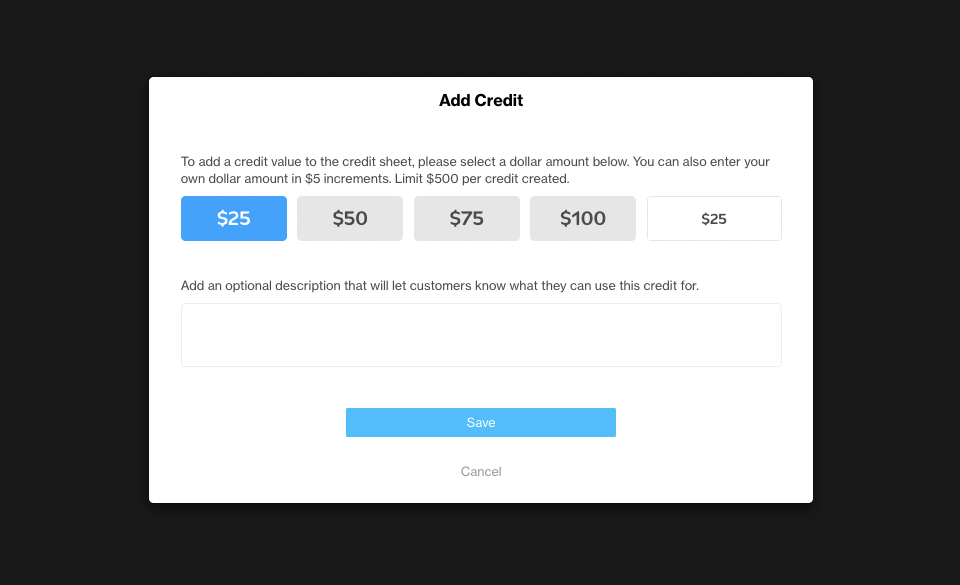
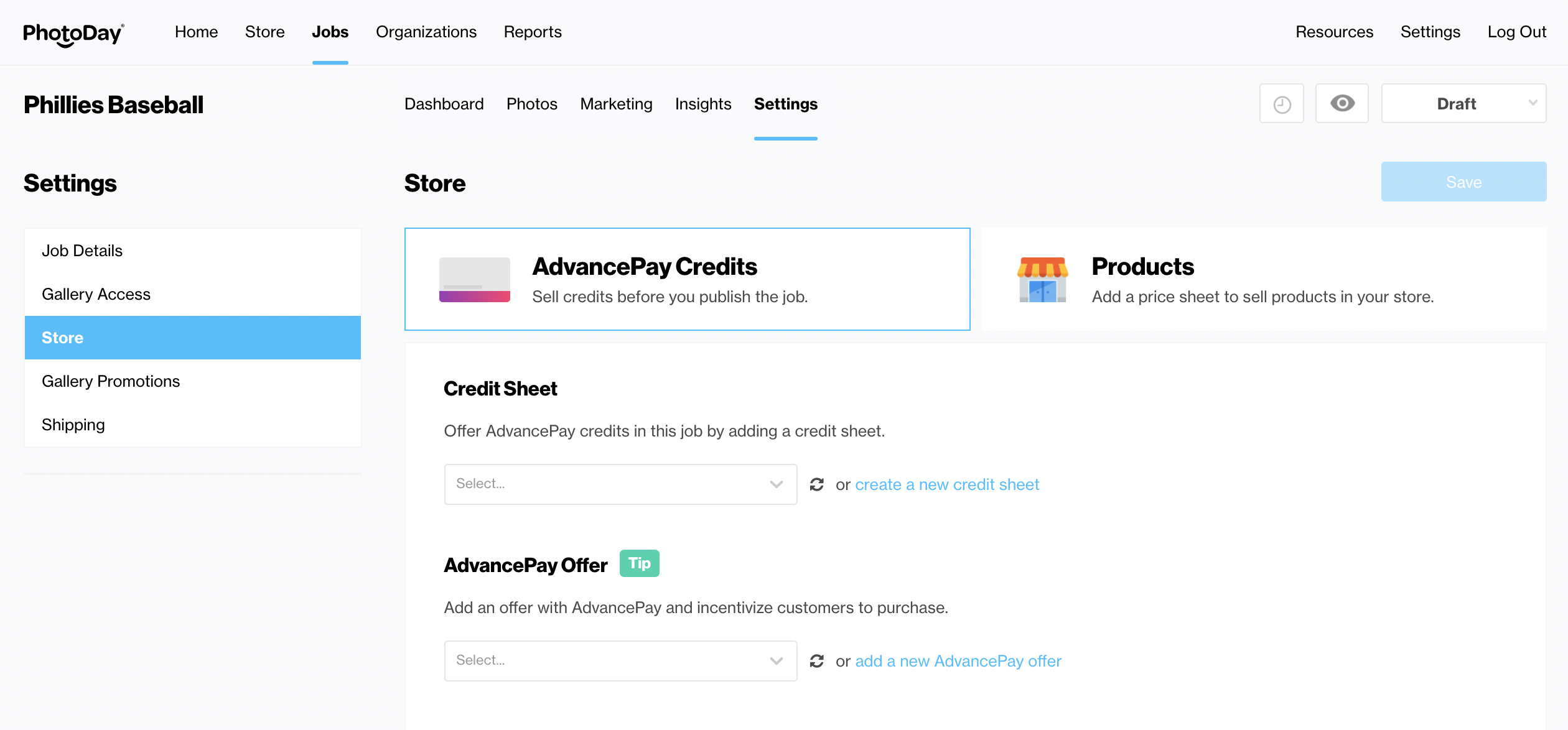
Once you’re happy with this credit amount, hit the Save button, and it will be added to your credit sheet. You can create up to four credits per sheet, and have as few as one. Your changes to your credit sheet will be automatically saved as you go along, so once you are done customizing it, feel free to move onto the next stage of getting started with PhotoDay - creating your first offers.
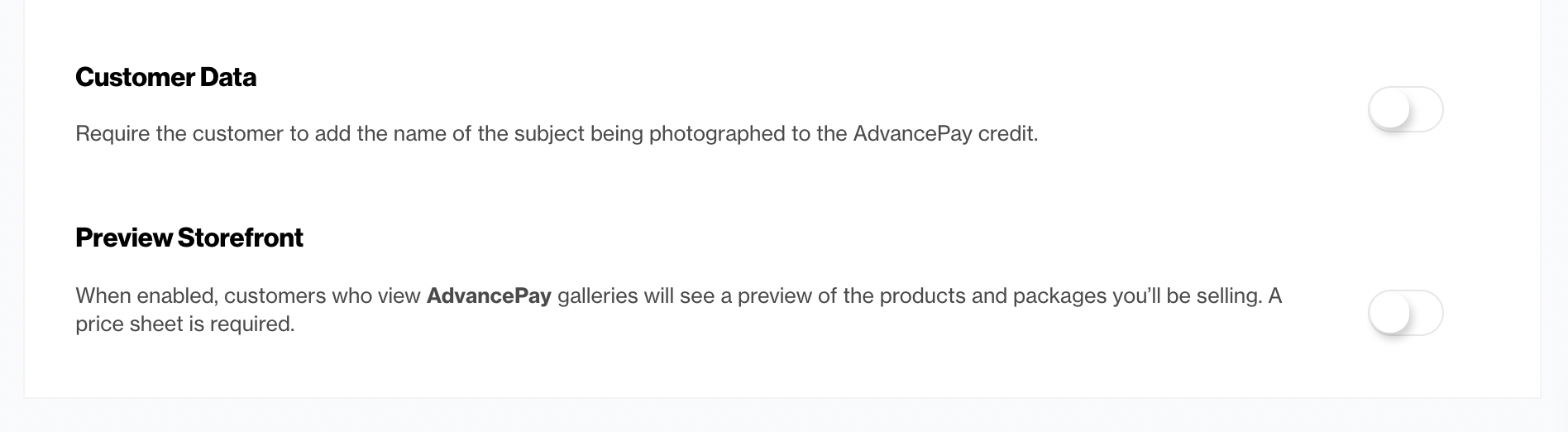
You can require customers to add the name of the person being photographed to each AdvancePay credit purchase. This information will then appear in the Job’s Insights after payment has been made.Additionally, after attaching a price sheet to your job under Products, you can toggle on the ability for your customers to preview the packages and items you’ll be selling after you publish the gallery, while they are shopping to make their AdvancePay credit purchase.
*If you are ready to start selling credits, be sure to switch the gallery status to AdvancePay. Learn more about gallery statuses here.